Opening leads
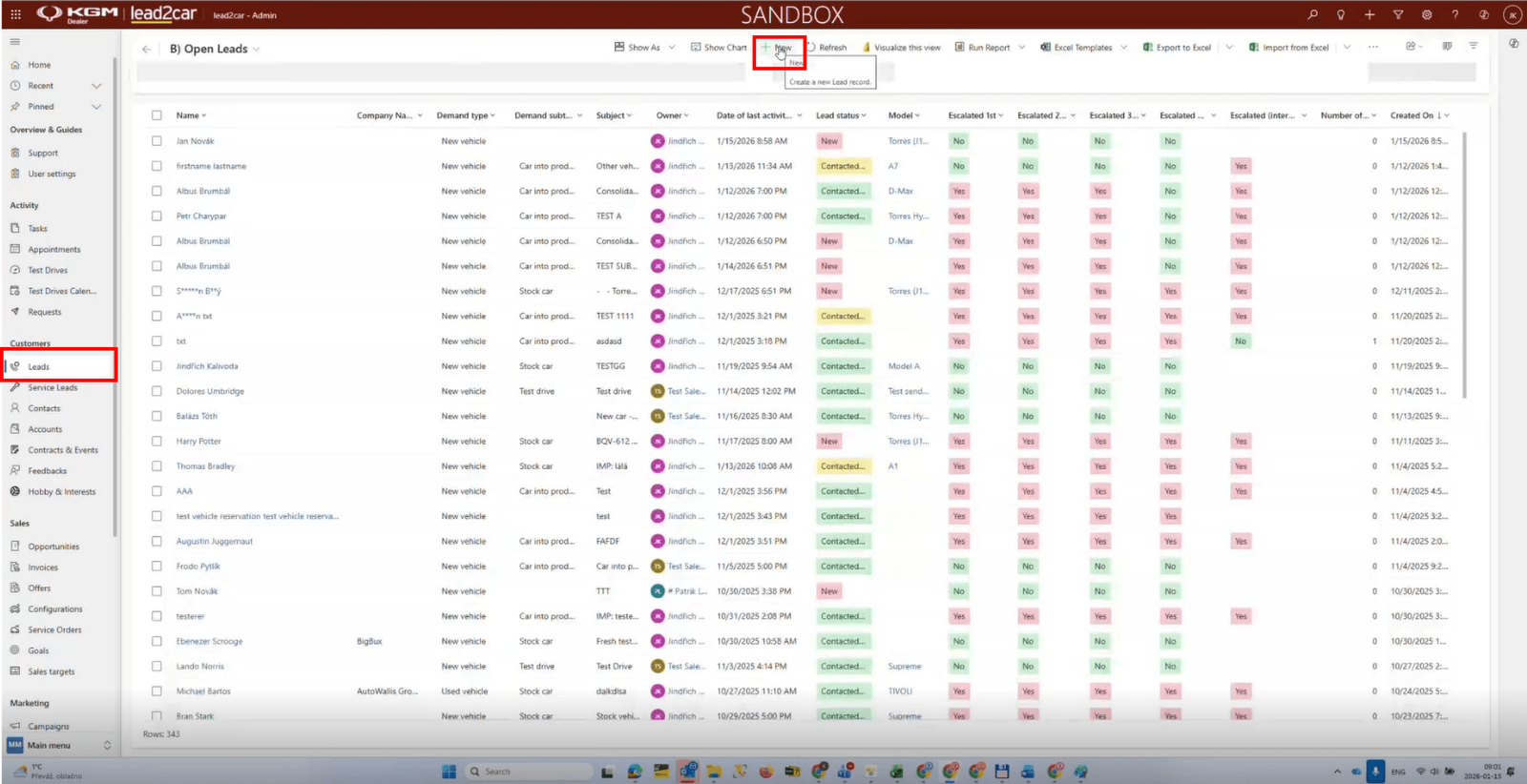
From the left navigation menu, find the Customers section and click Leads. The Leads overview displays all existing leads including their current status.
To create a new lead, click + New in the ribbon.
Creating a lead
After clicking New, the lead creation form opens automatically. Fill in the required fields in the General information tab.
Required fields
- Subject
- Lead source
- Demand type
- Customer last name
- Contact detail – at least a phone number or an email
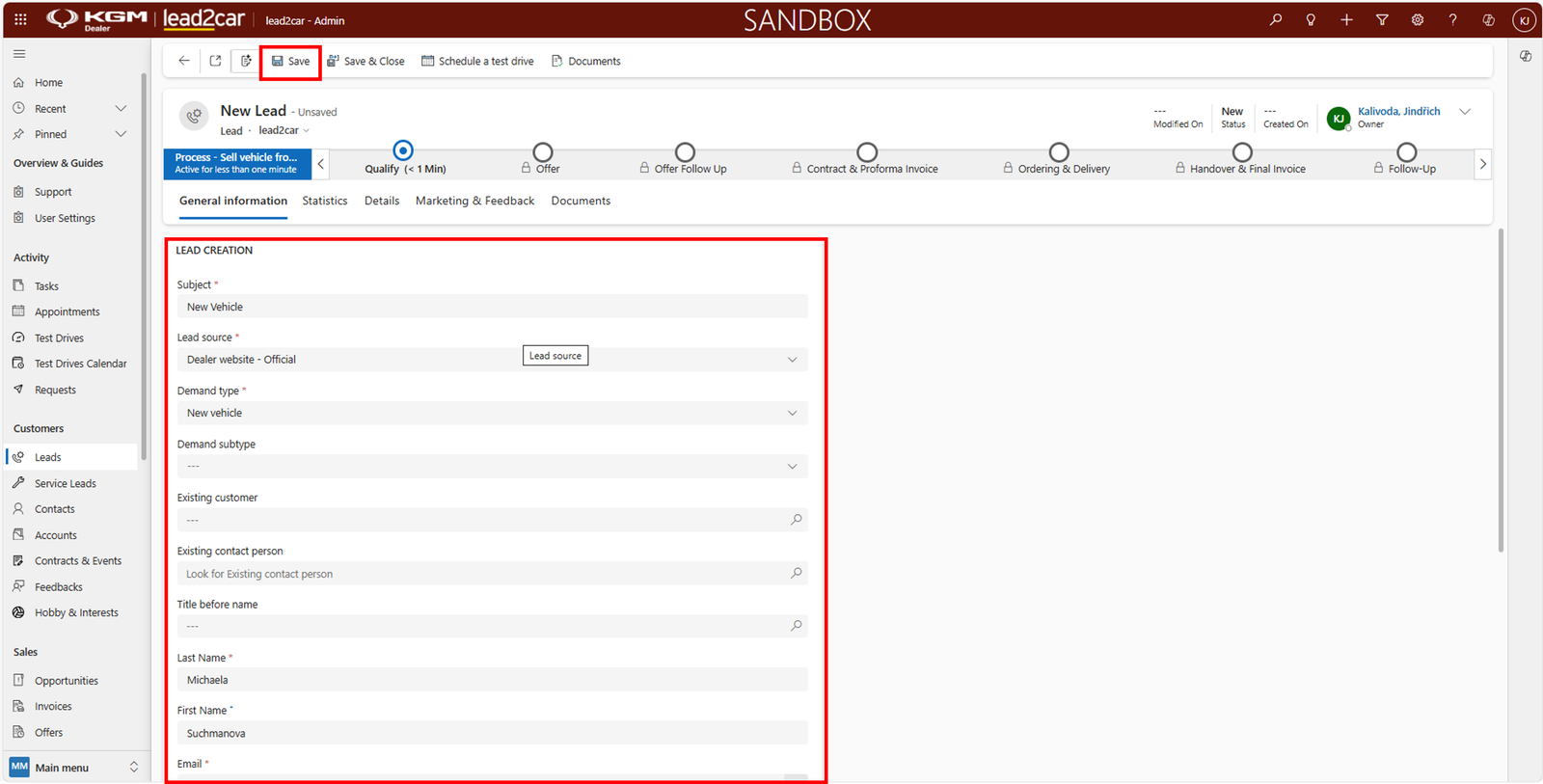
Click Save or Save & Close in the ribbon.
Assigning a lead
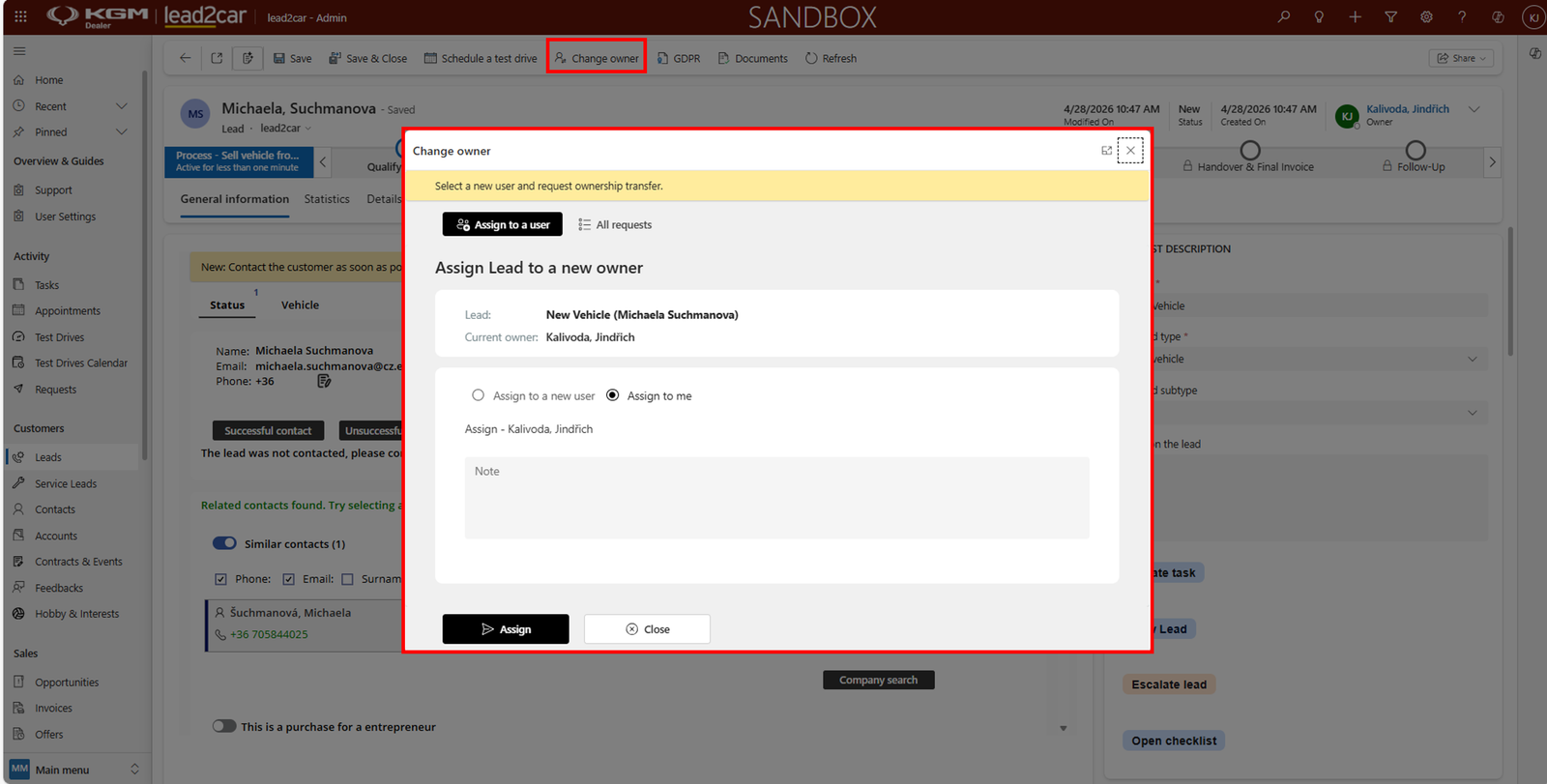
Assigning defines who is responsible for the lead. If you create the lead yourself, you are automatically set as the owner and no assignment is required.
To change the responsible user, use Change owner in the ribbon. The button may be hidden under the three dots.
Contacting the customer
Record whether the contact attempt was successful or unsuccessful.
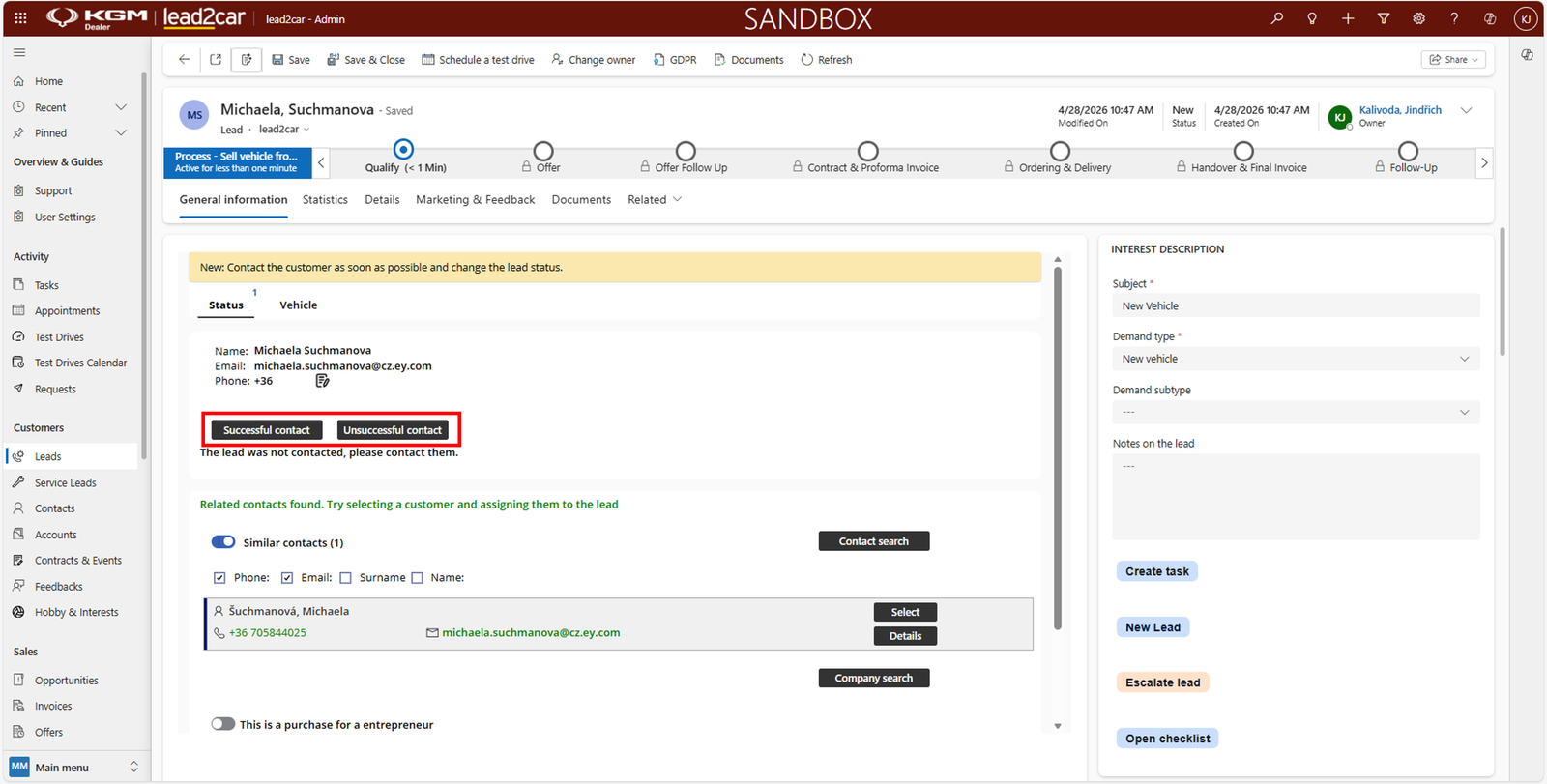
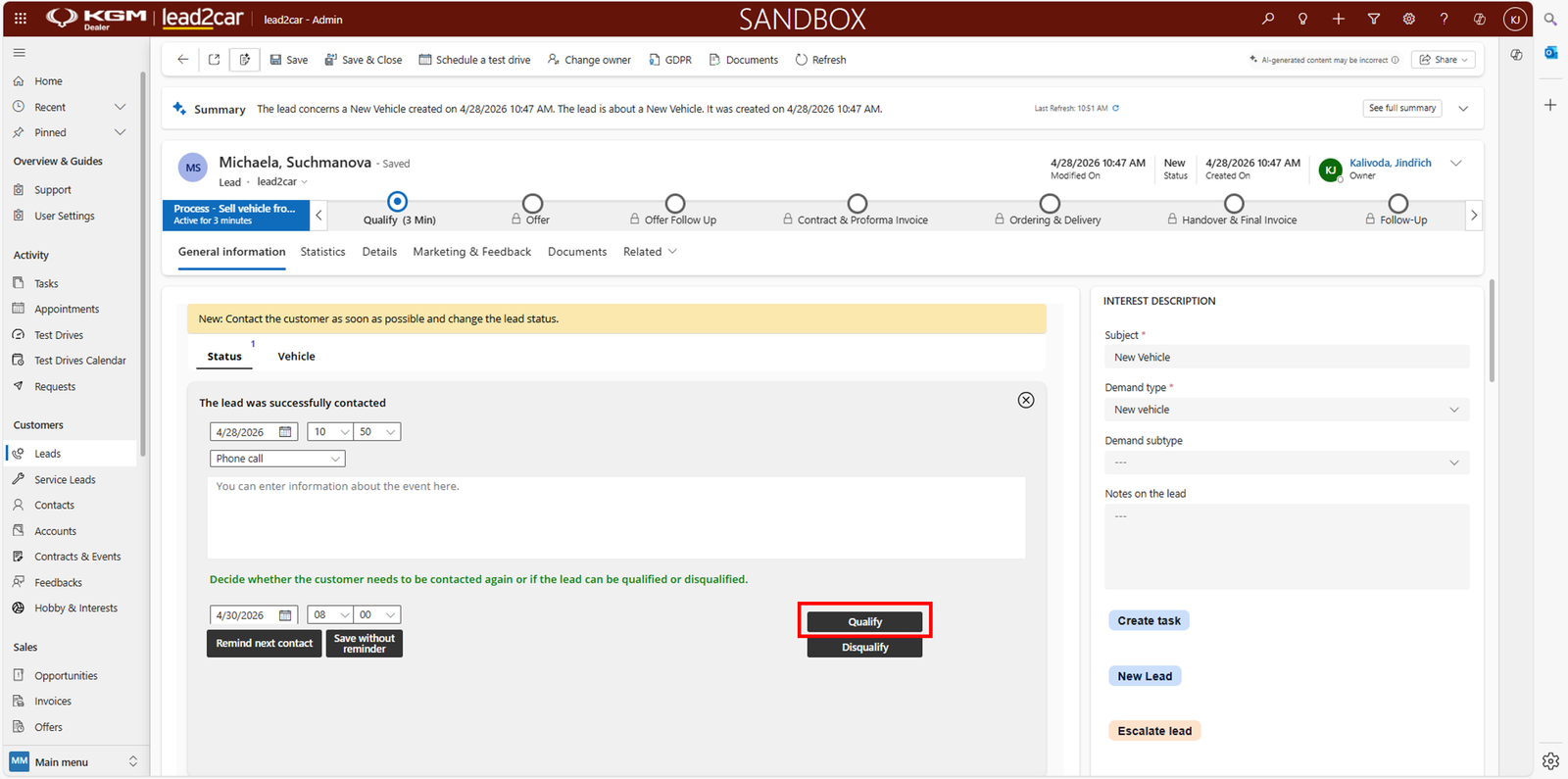
Successful contact
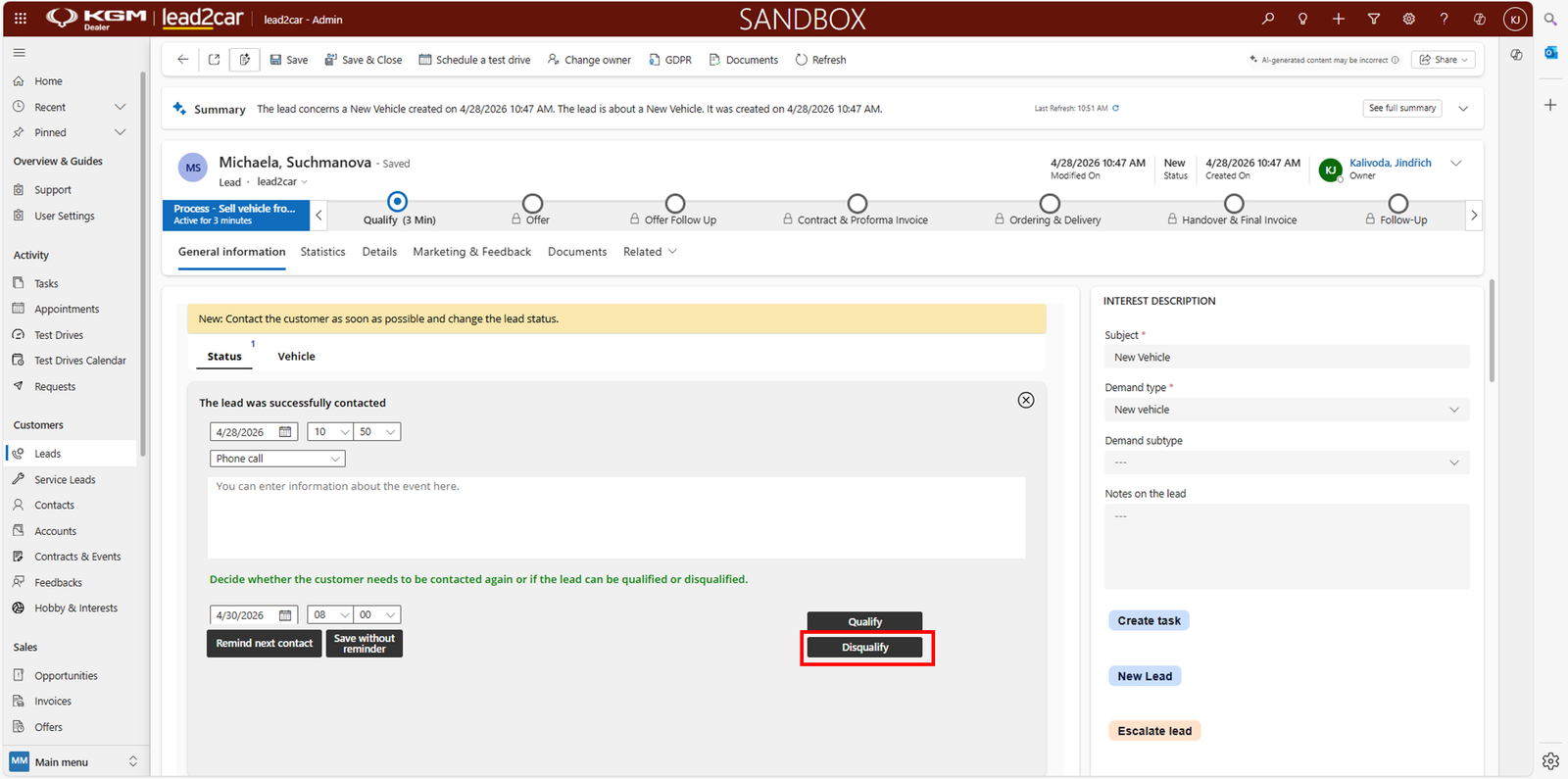
Record the details, add a note and decide the next step:
- Customer is not interested Disqualify
- Customer is undecided Follow-up
- Customer is interested Qualify

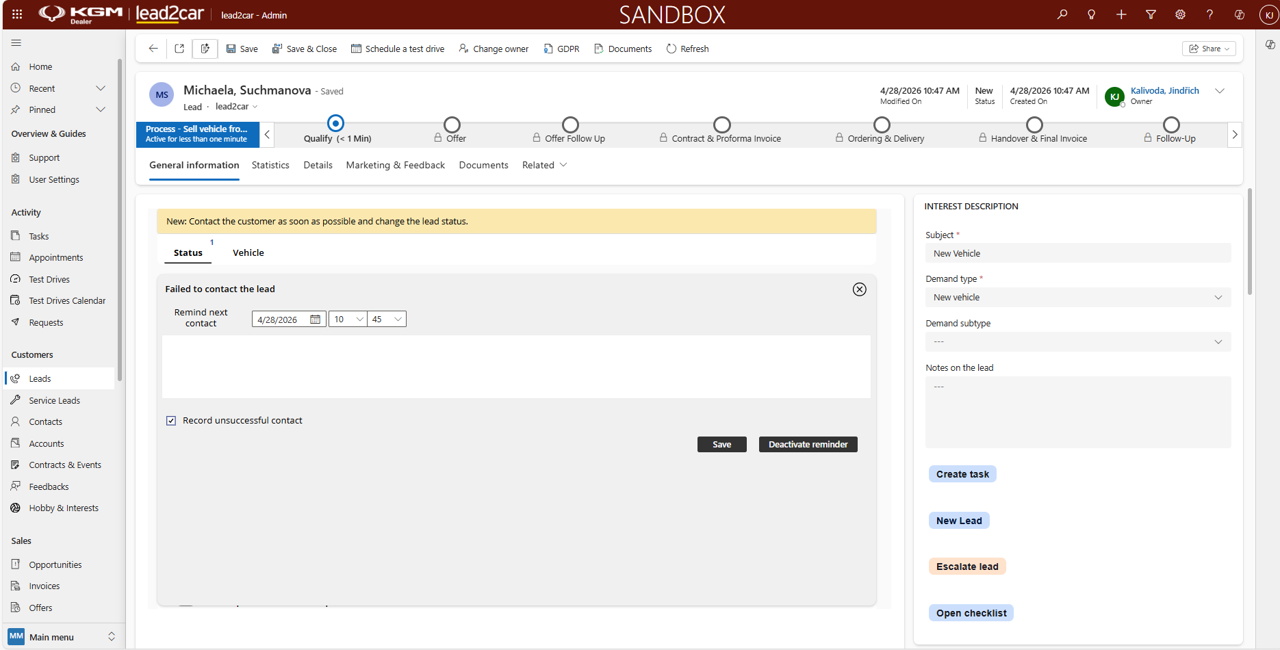
Unsuccessful contact
Set a reminder. The attempt is saved automatically.
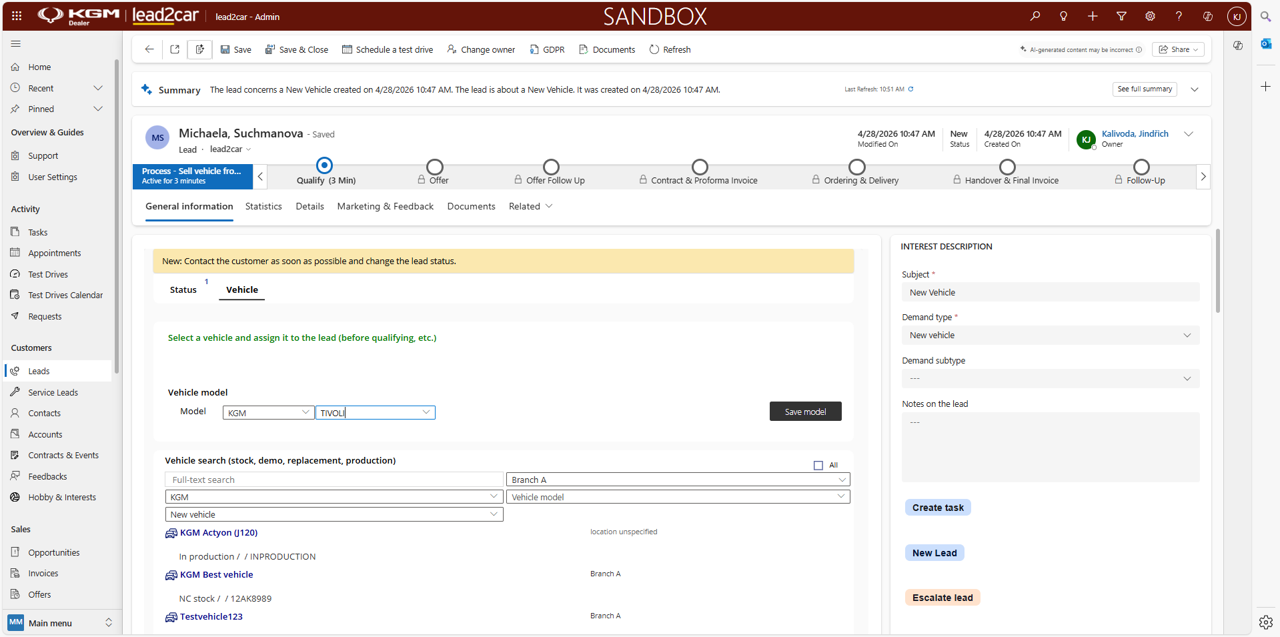
Vehicle assignment
Assign a model or a specific vehicle before qualification.
- Model – select the model and click Save model
- Stock vehicle – search for the vehicle and assign it
Disqualifying a lead
Select a reason and optionally add a note.
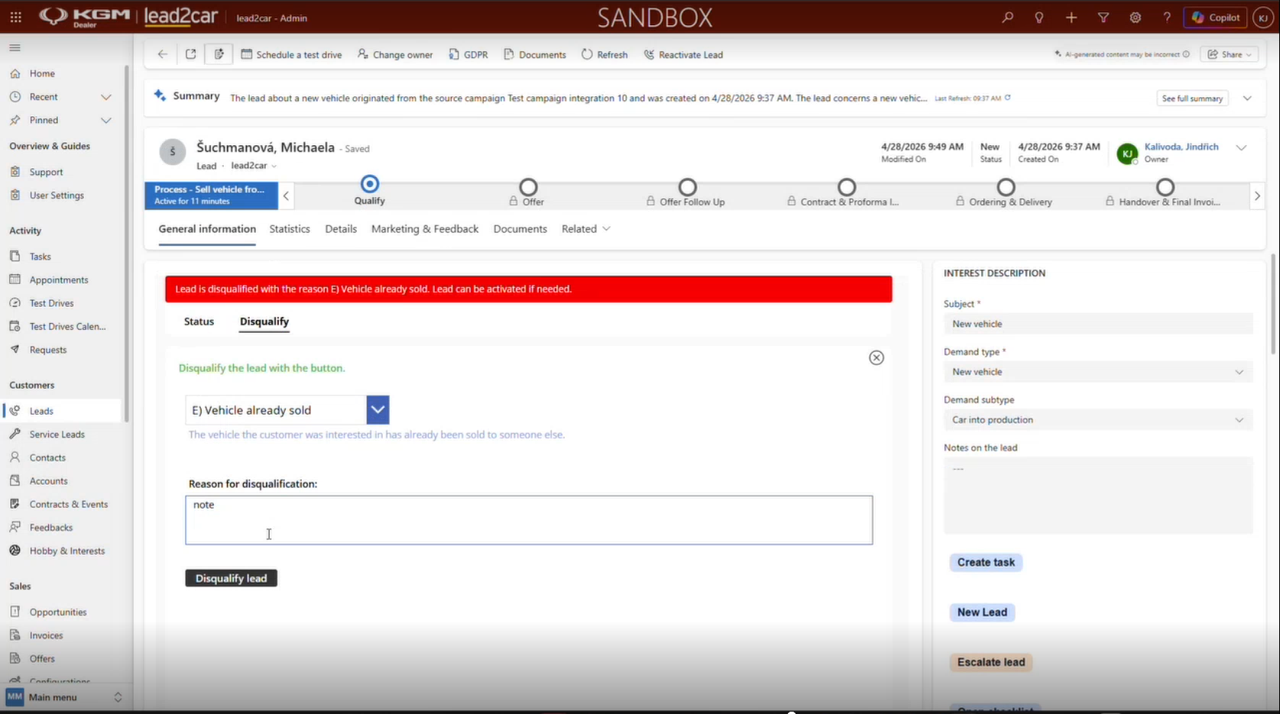
Reactivating a lead
If needed, the lead can be reactivated. Use Activate lead from the Disqualified section or from the ribbon.
Qualifying a lead
Qualification creates:
- Customer (if needed)
- Opportunity
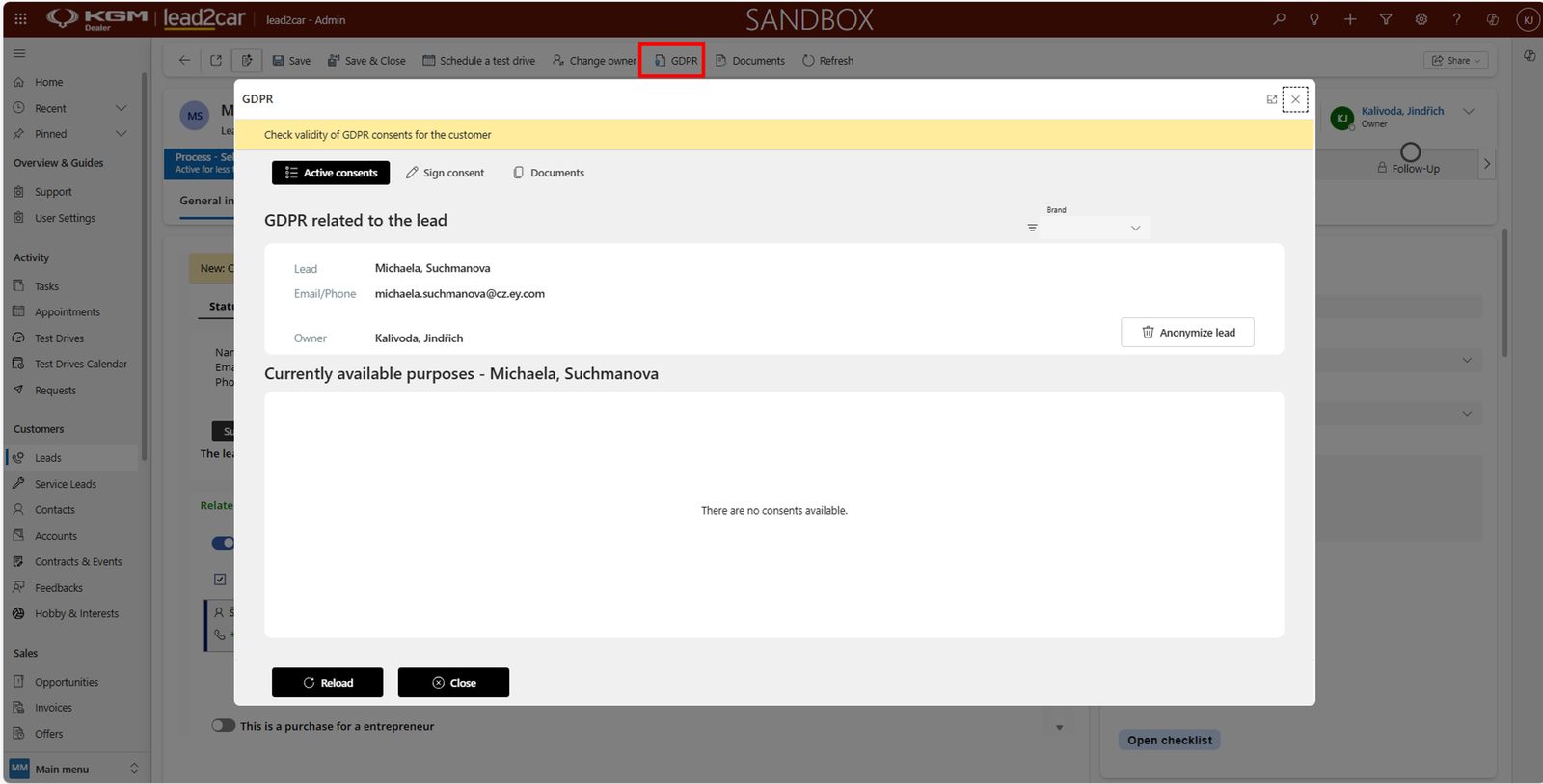
GDPR
Manage consents using the GDPR tab:
- View active consents
- Sign new consent
- Upload documents
- Anonymize lead
Other ways to create a lead
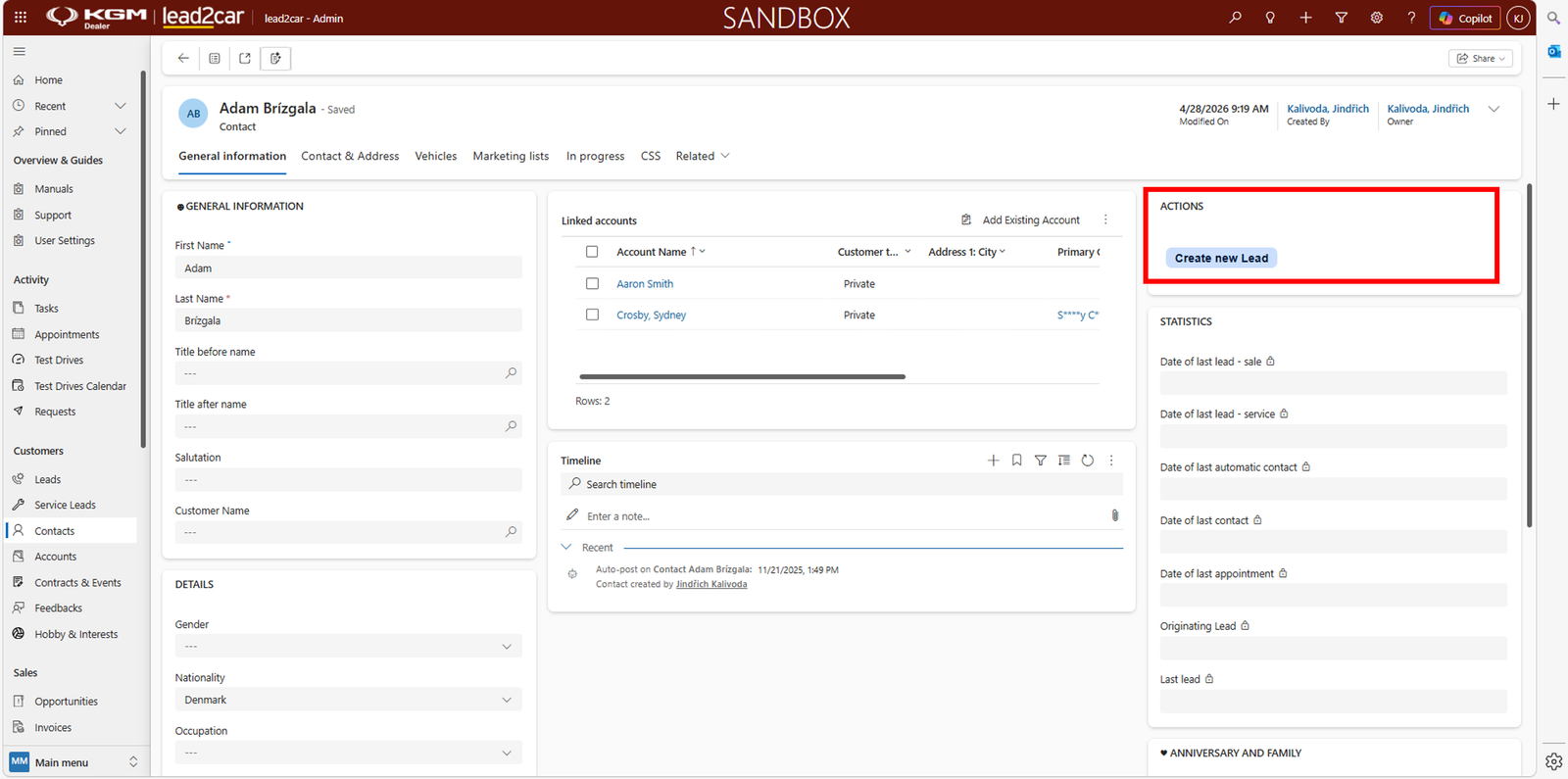
From customer
Create a lead from an existing customer. Contact data is filled automatically.
From vehicle
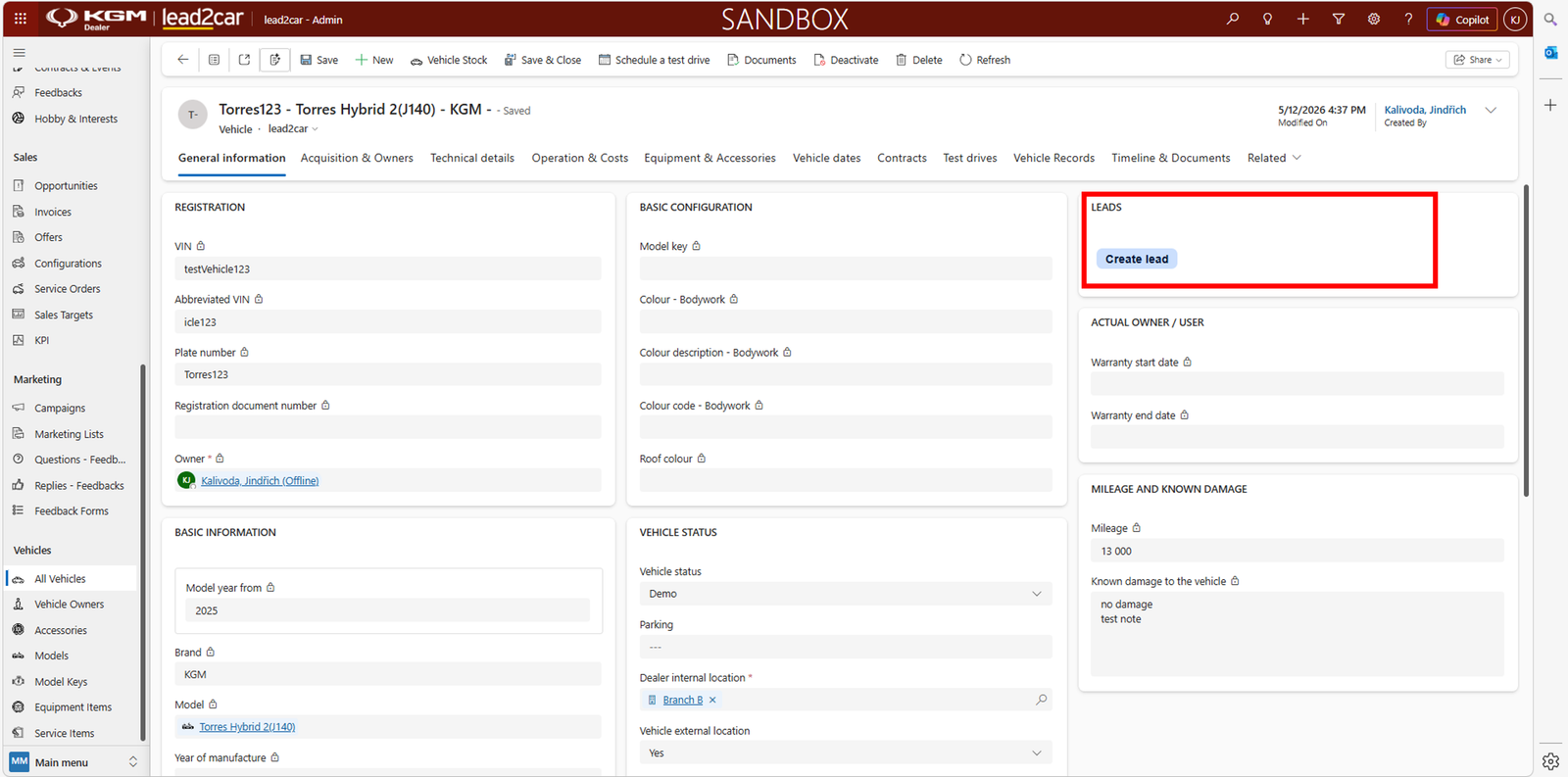
Create a lead from a vehicle. Vehicle data is filled automatically.