Opportunity overview
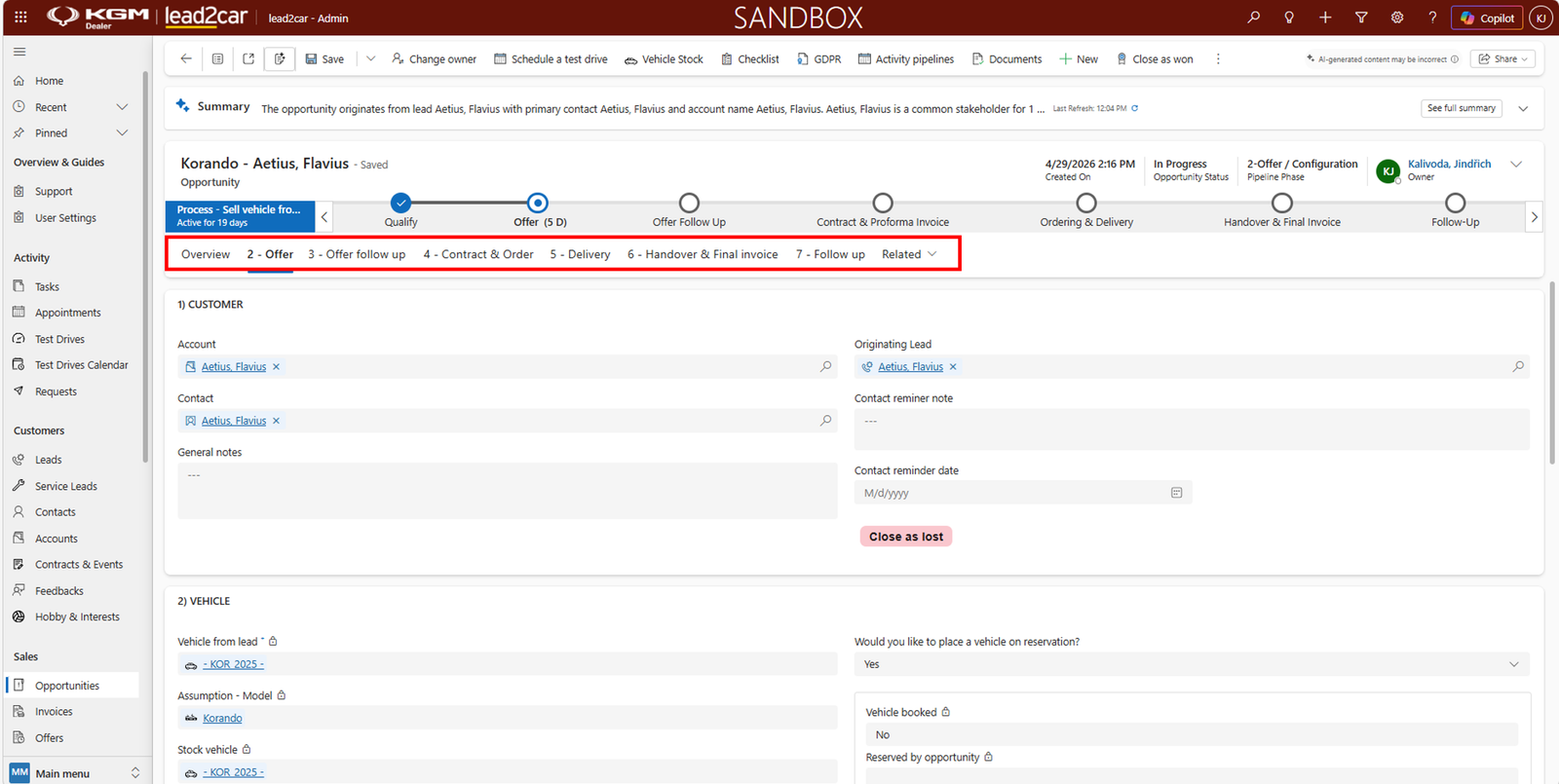
After qualifying a lead, an Opportunity is automatically created. The opportunity represents the complete sales process divided into phases:
- Overview
- Offer
- Offer follow up
- Contract & Order
- Delivery
- Handover & Final invoice
- Follow up
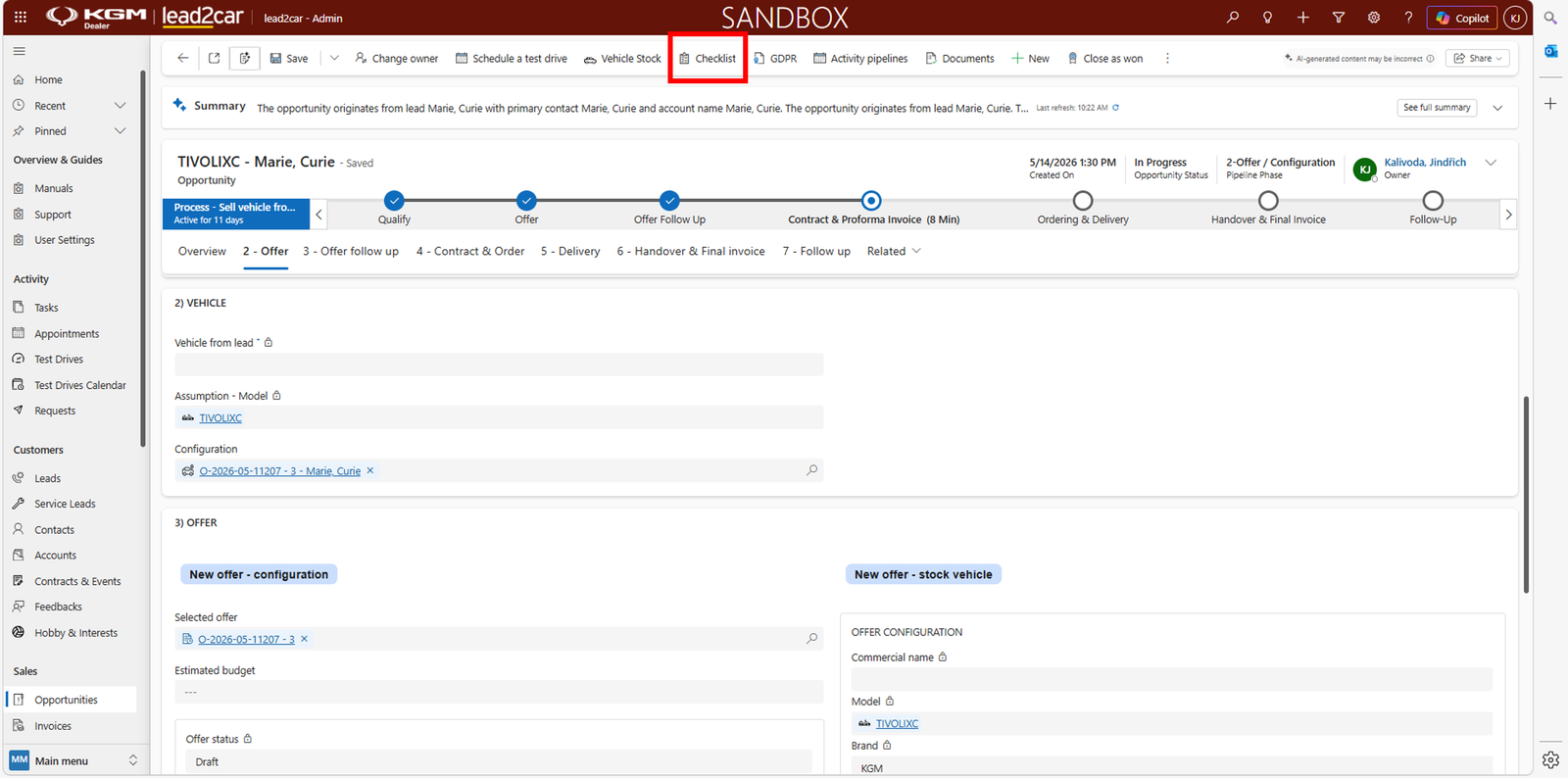
Checklist
Each phase includes a Checklist with required tasks. Use the Open checklist button to view and complete them.
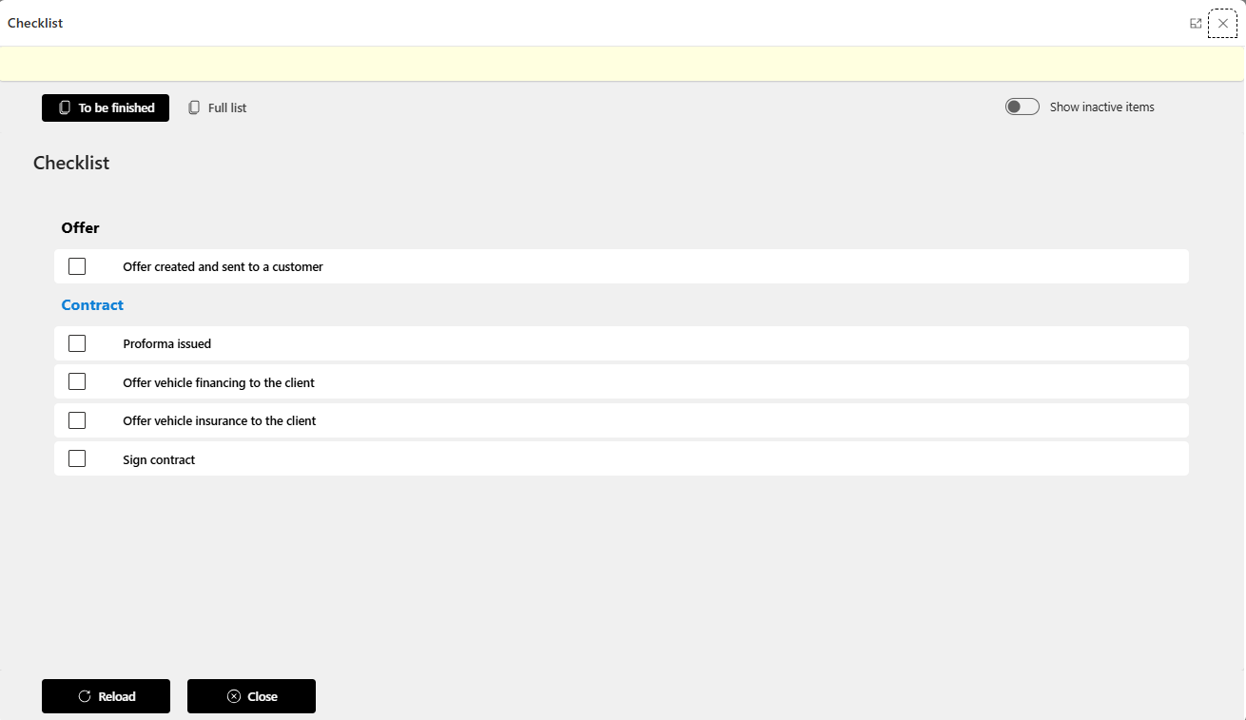
- Offer created and sent
- Offer accepted
- Proforma issued
- Contract signed
Offer
- Interactive guide: Manual configuration
- Interactive guide: Uploaded configuration
- Interactive guide: New configuration (CPQ)
- Interactive guide: New offer version
- Interactive guide: Discount
- Interactive guide: Offer document generation
- Interactive guide: Customer offer acceptance
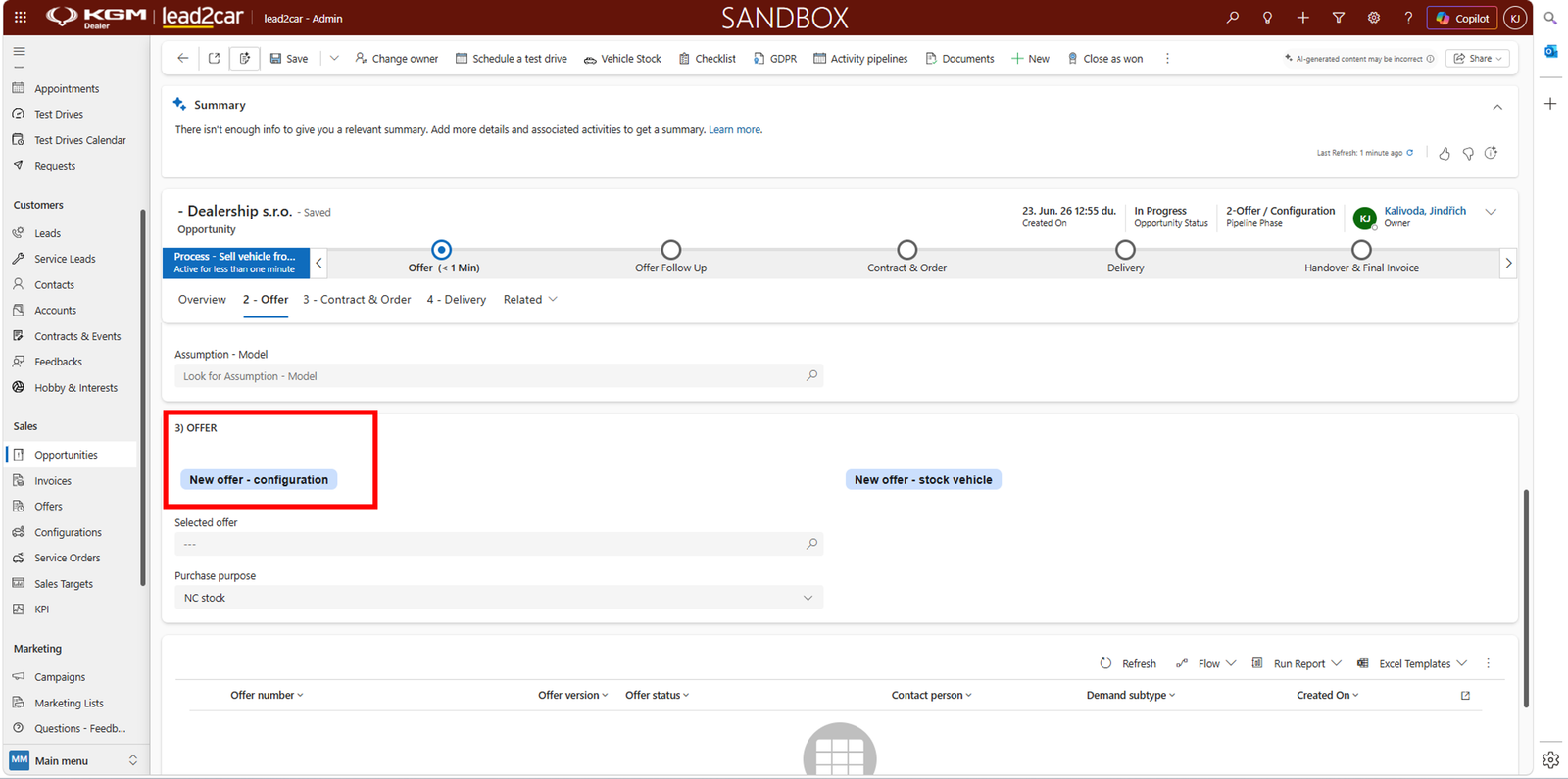
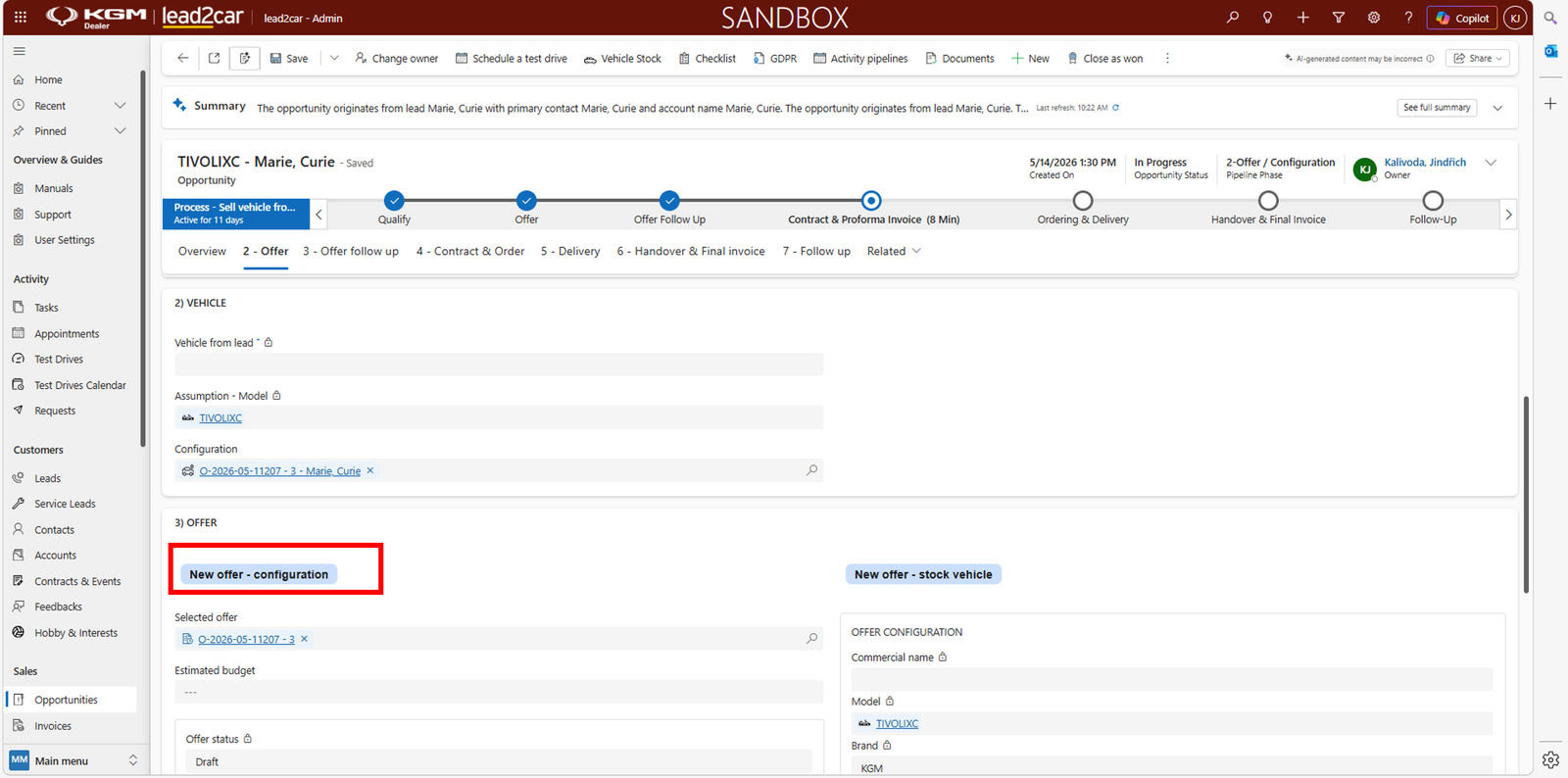
In this phase, an offer is created for the customer.
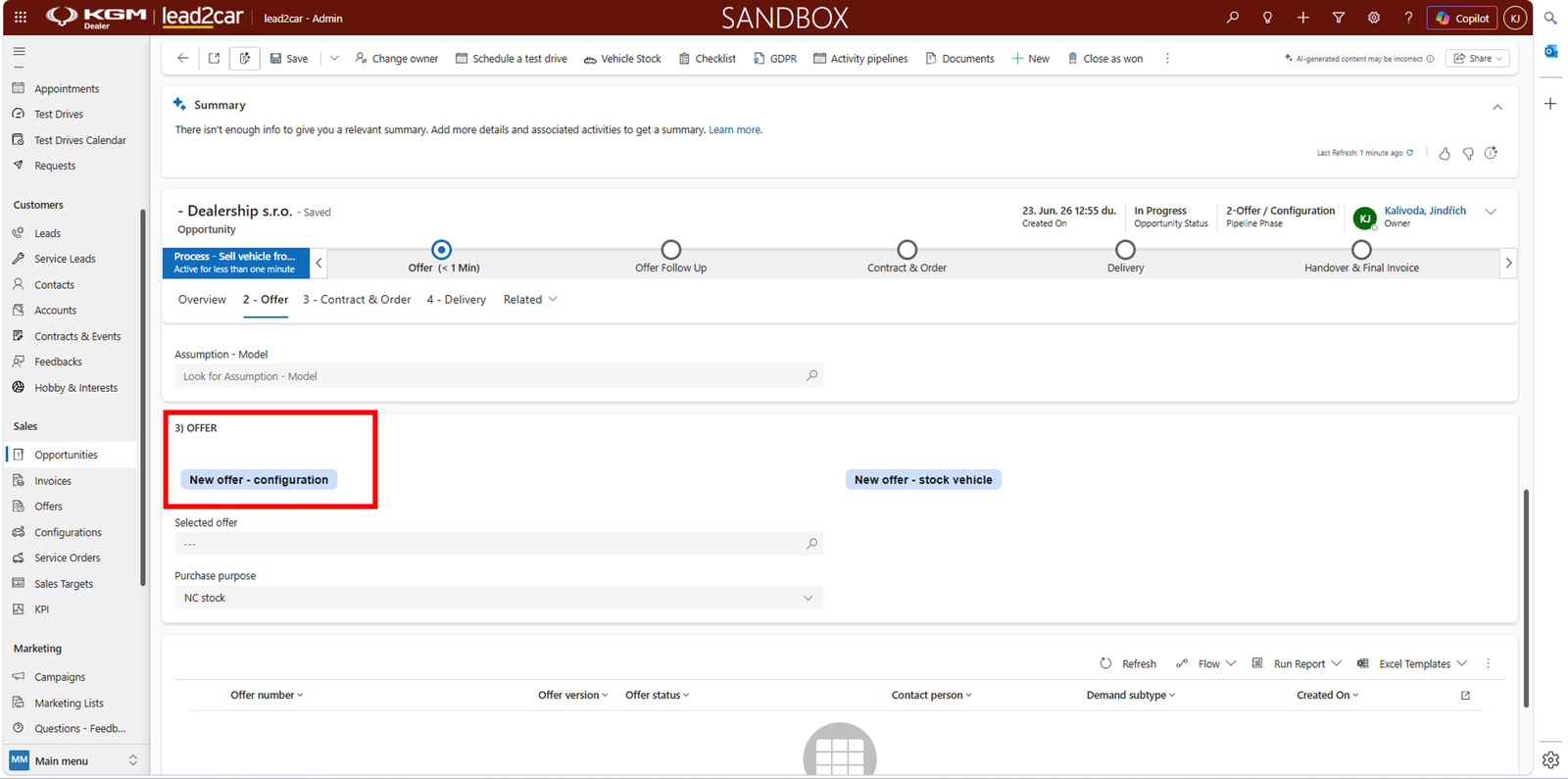
- New offer – configuration – for a vehicle into production
- New offer – stock vehicle – for a vehicle already in stock
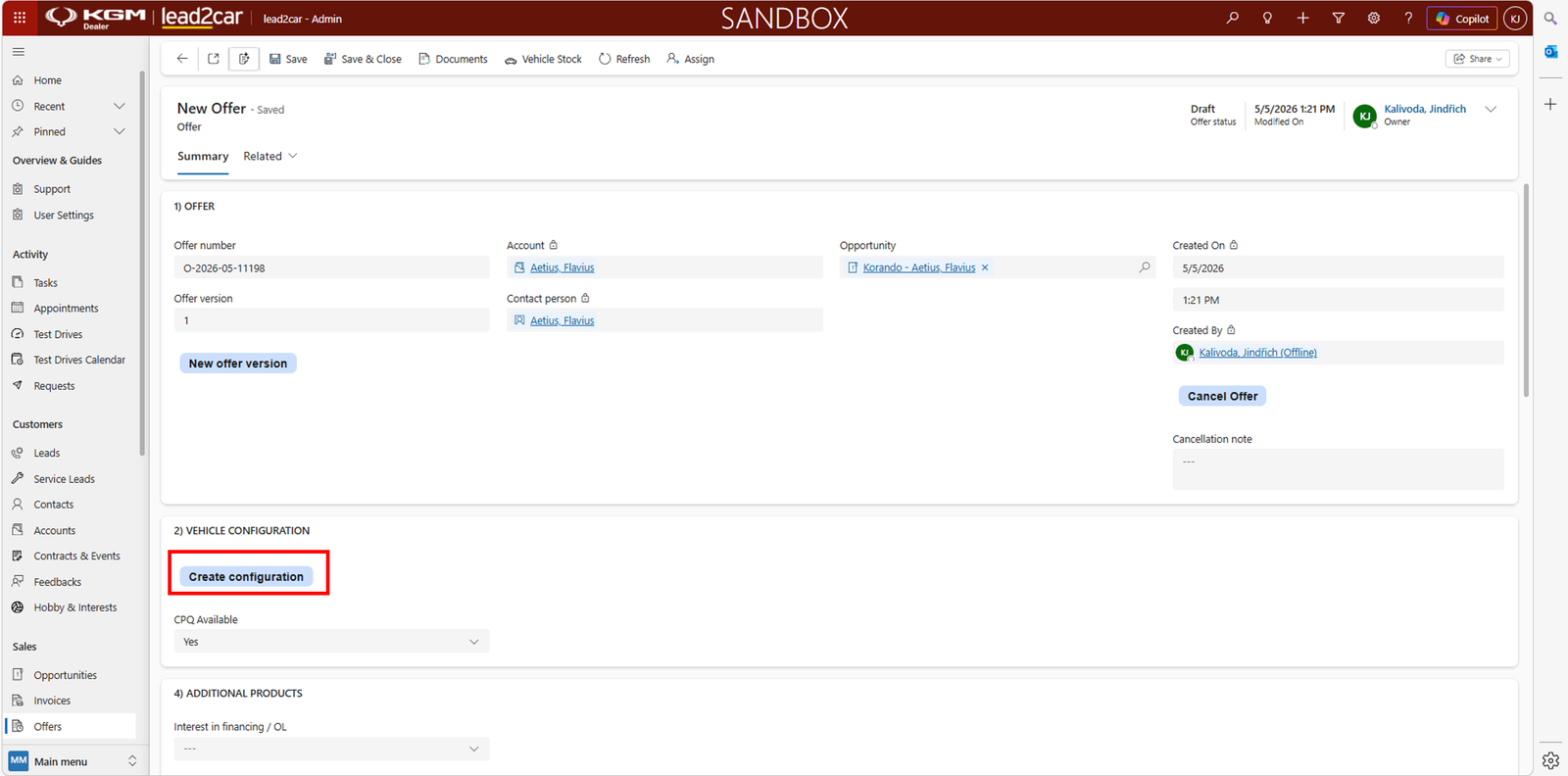
Vehicle configuration
Configuration can be done directly in lead2car or using CPQ (if available).
Configuration without CPQ (main process)
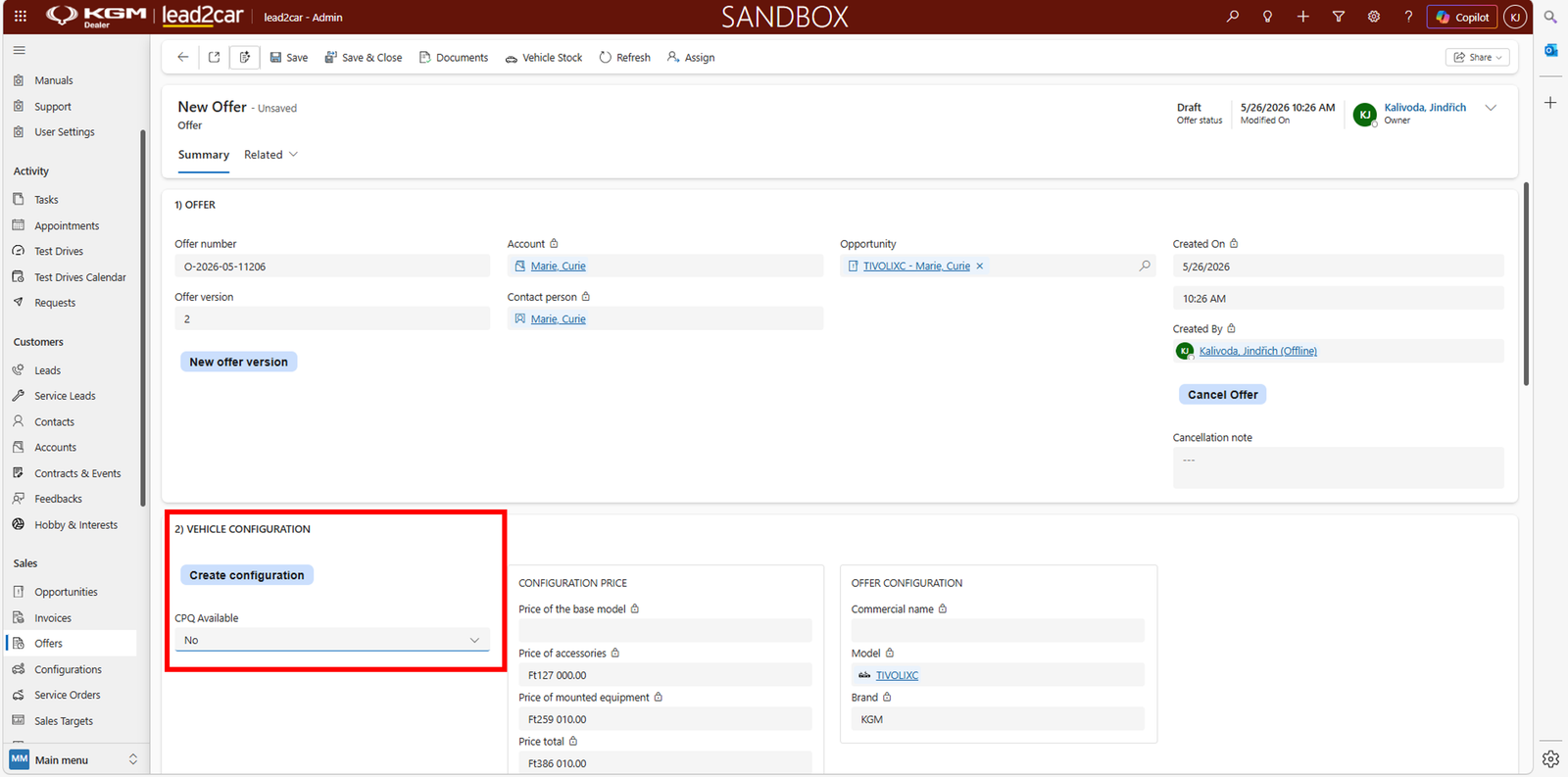
- Click Create configuration
- Ensure CPQ Available = No

Use buttons like Colors, Wheels and Interior to configure the vehicle.
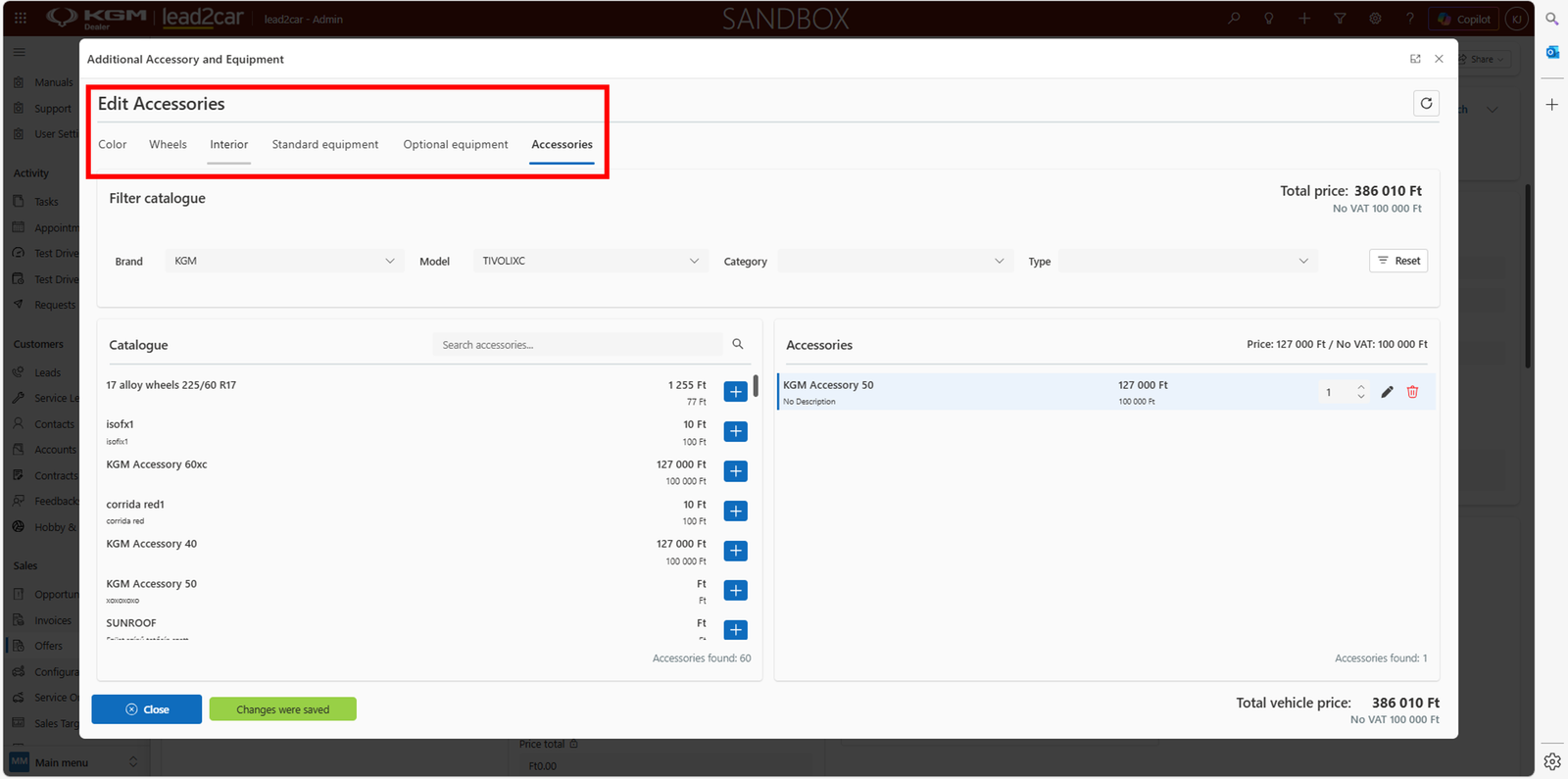
Select equipment and accessories.
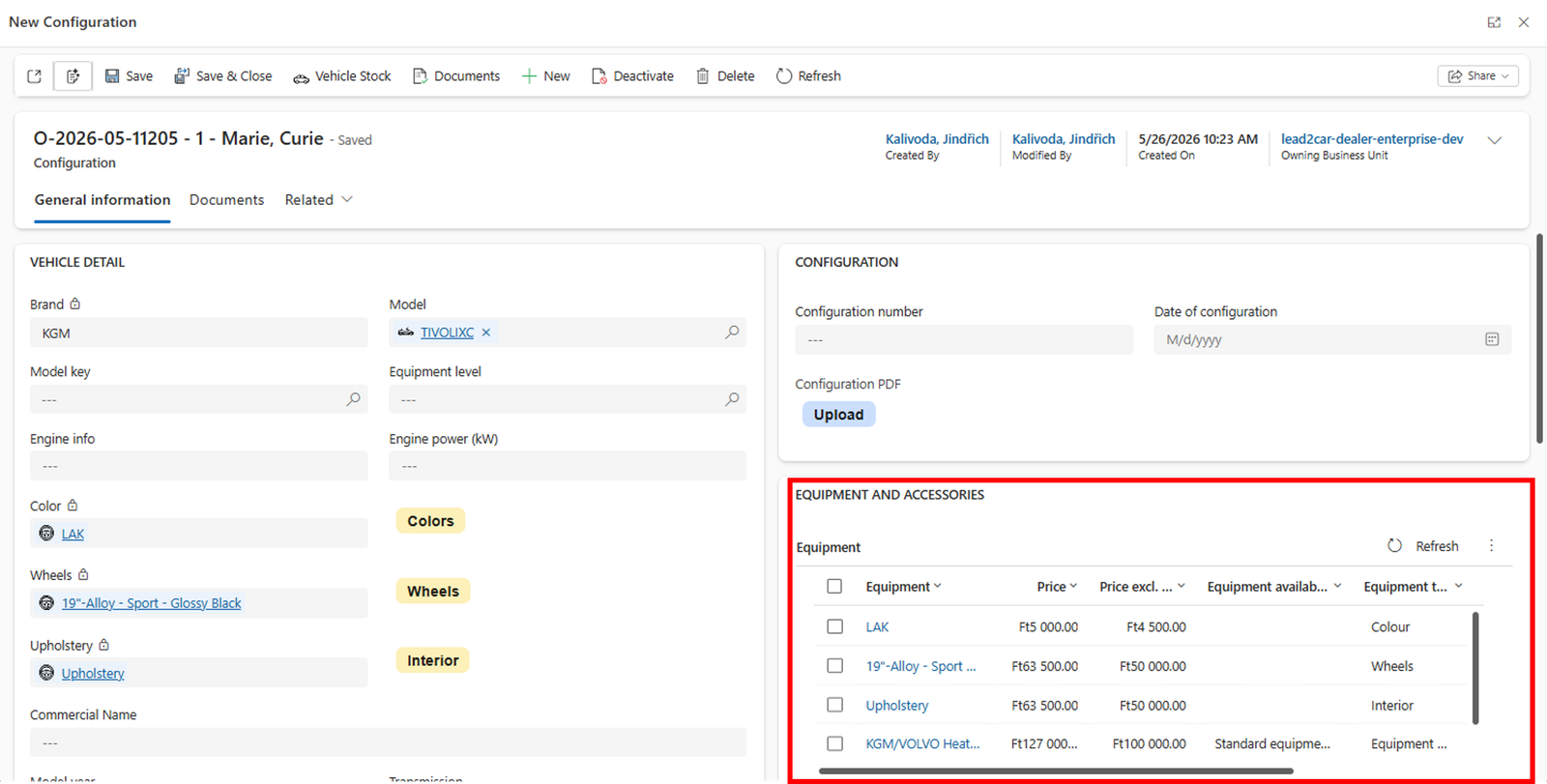
After clicking Save, the configuration is applied and all values are recalculated.
Configuration with CPQ (optional)
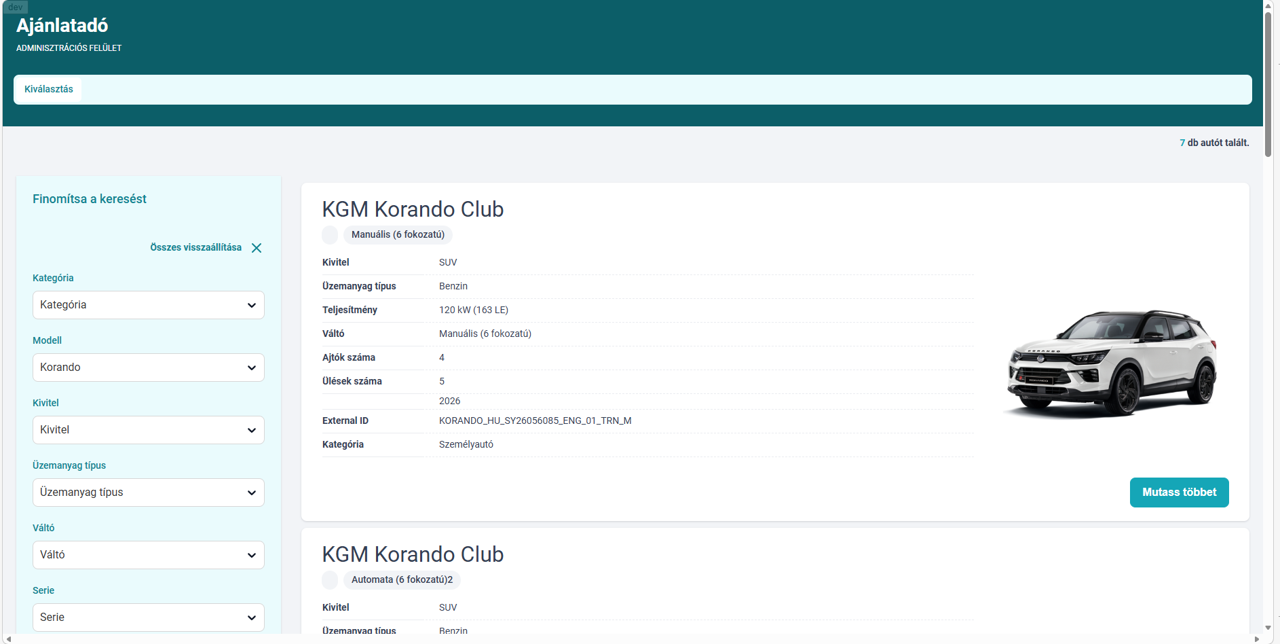
Configuration is done externally and then transferred back to the offer.
New offer version
If changes are needed in the existing offer, a new version can be created.
- Click New offer version in the ribbon
- The system creates a copy of the current offer
- You can then modify pricing, configuration, or other details
This allows you to update the offer without changing the original version and keep track of all changes.
Discounts
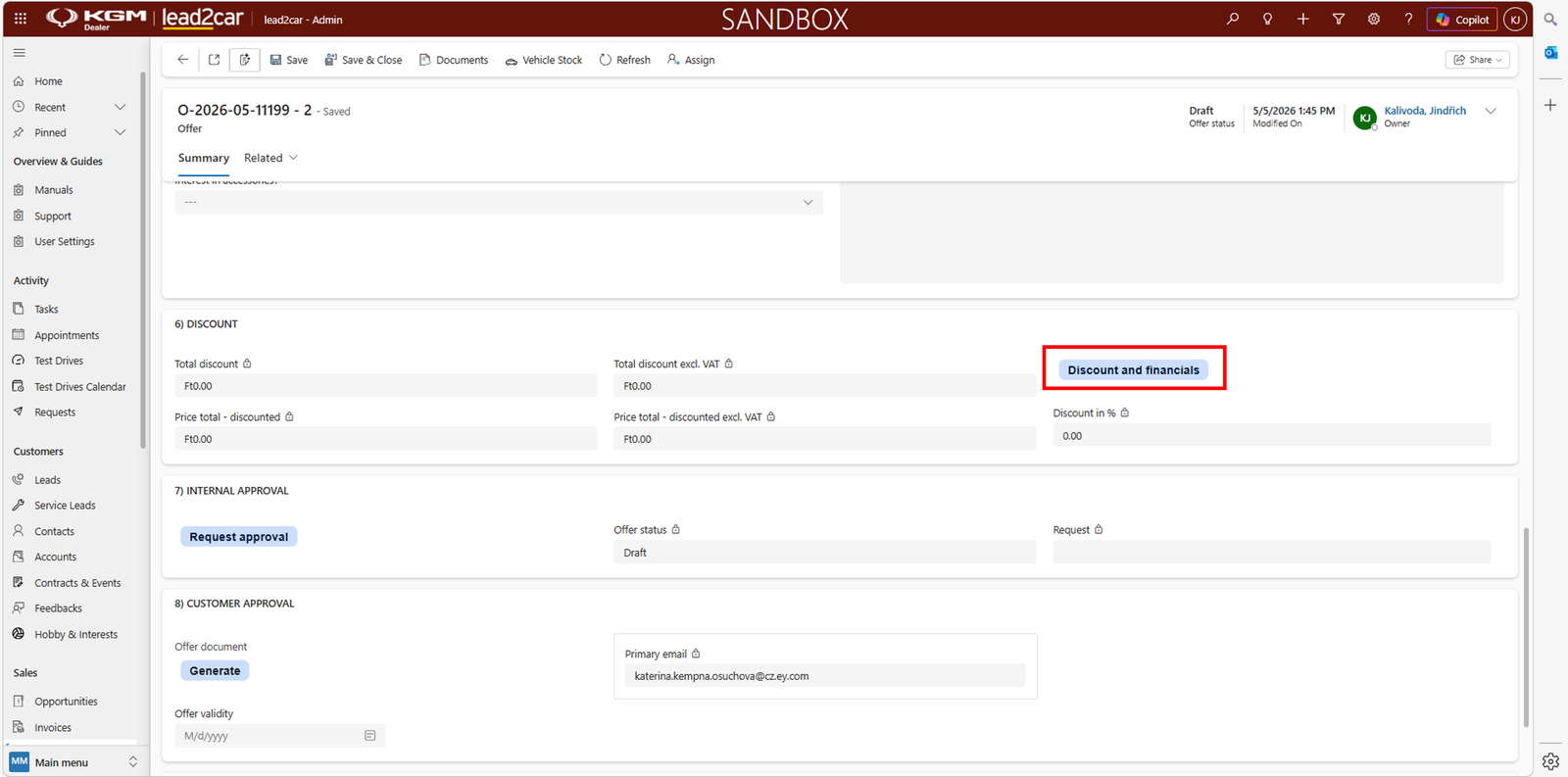
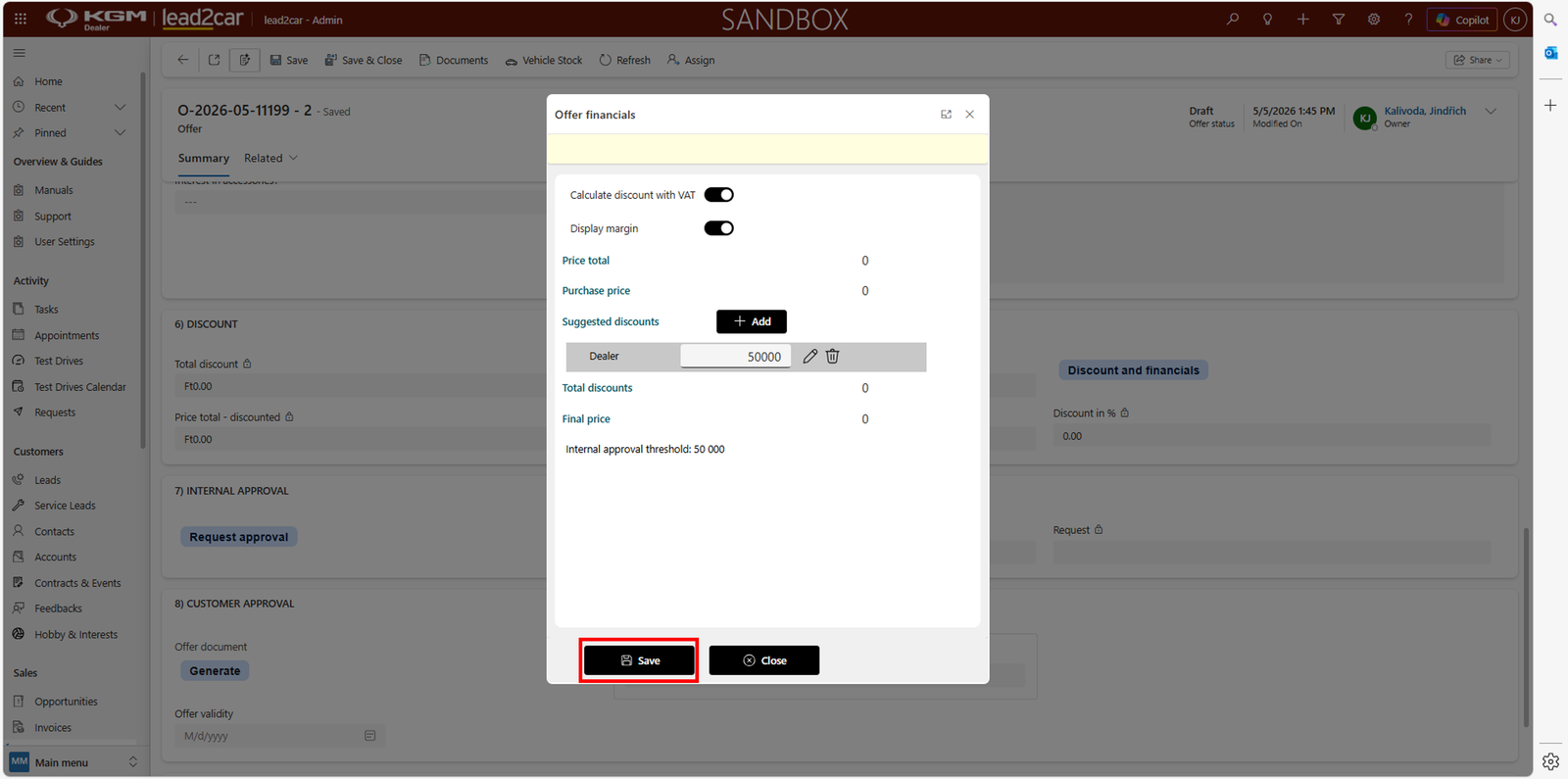
Discounts are applied directly and recalculated automatically.
Generating the offer document
- Go to the Customer Approval section
- Click Generate
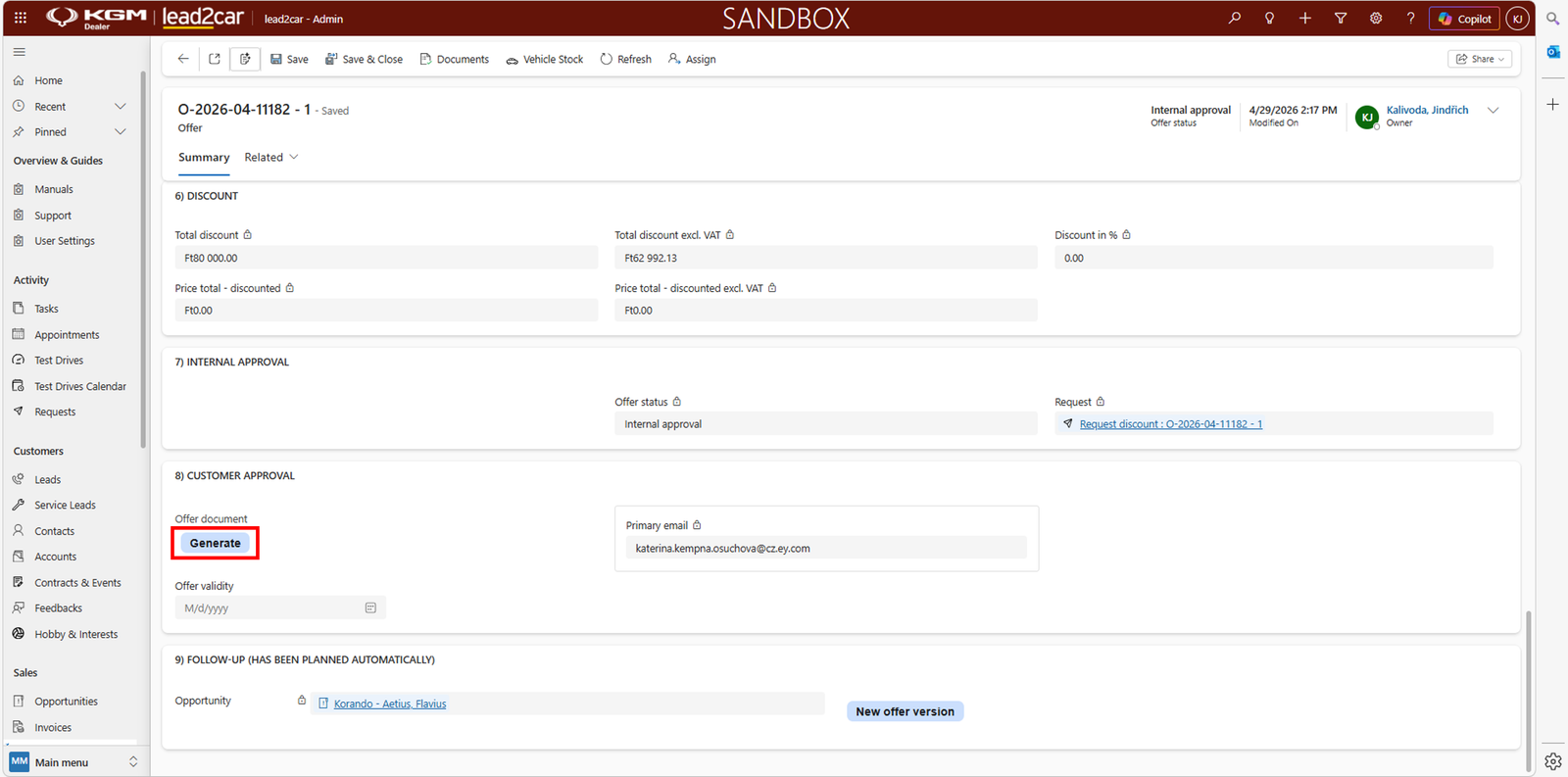
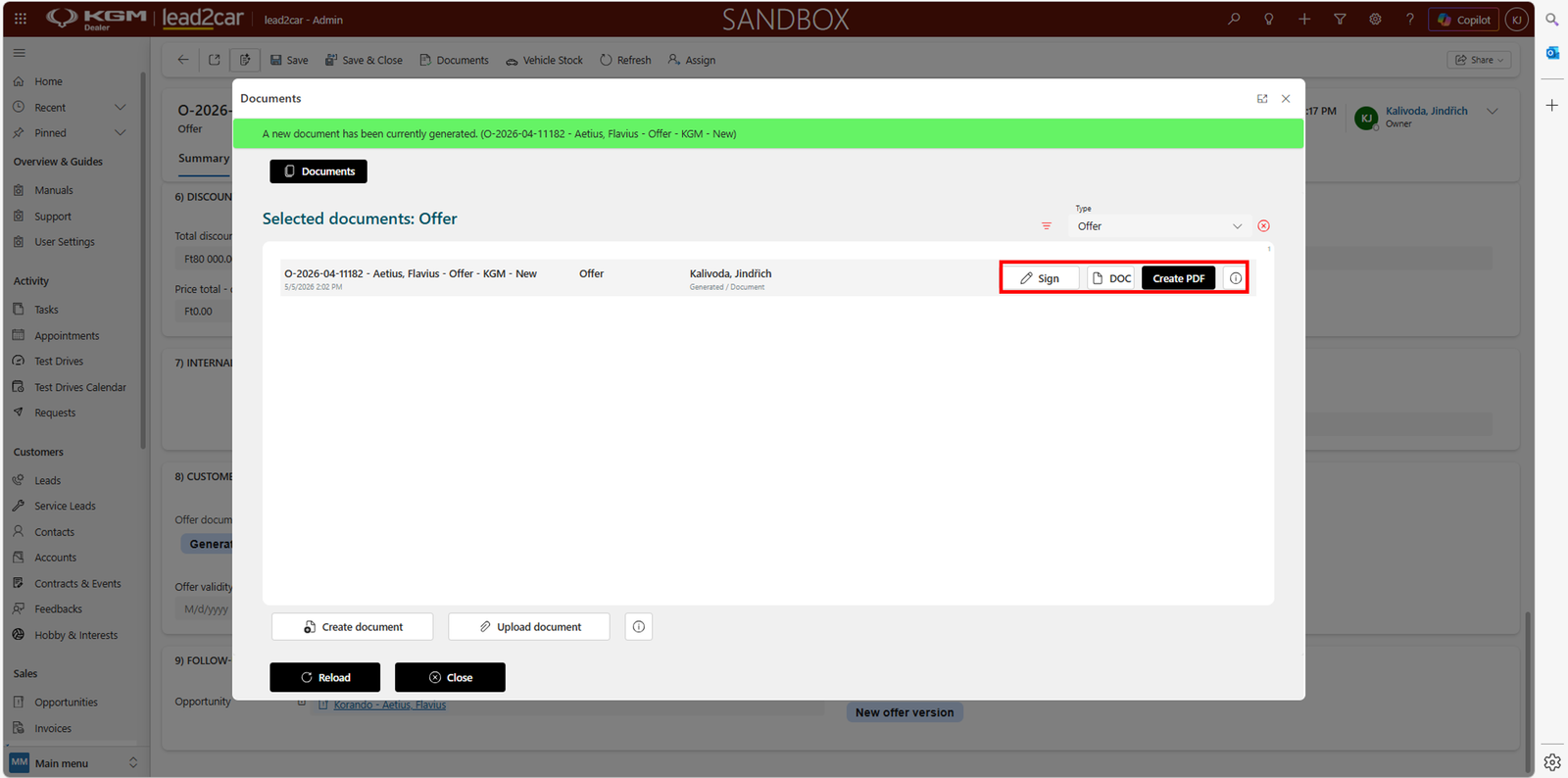
Select a template, generate the document, sign it and create a PDF.
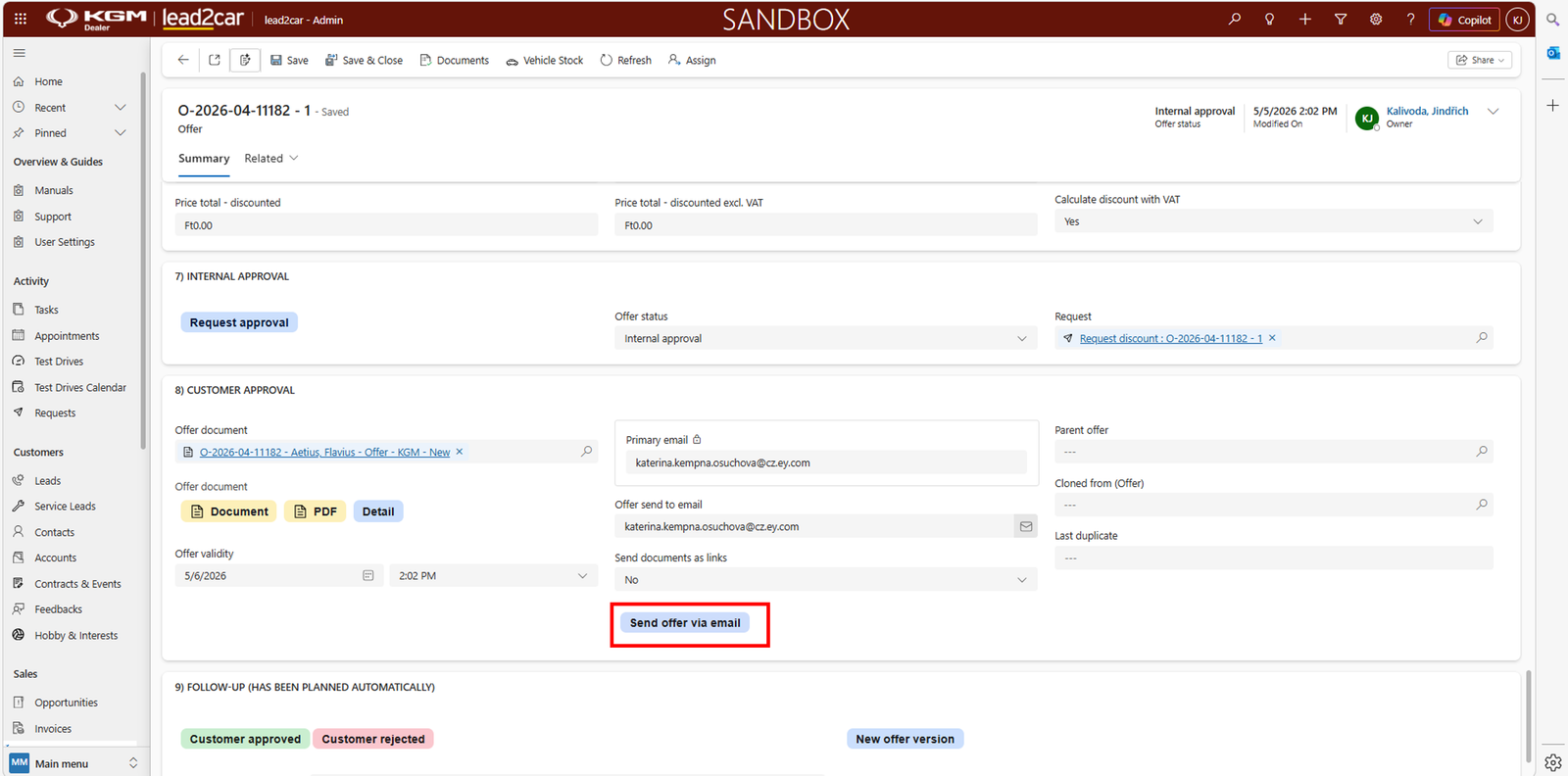
Sending the offer
- Check the email address
- Select the format
- Click Send offer via email
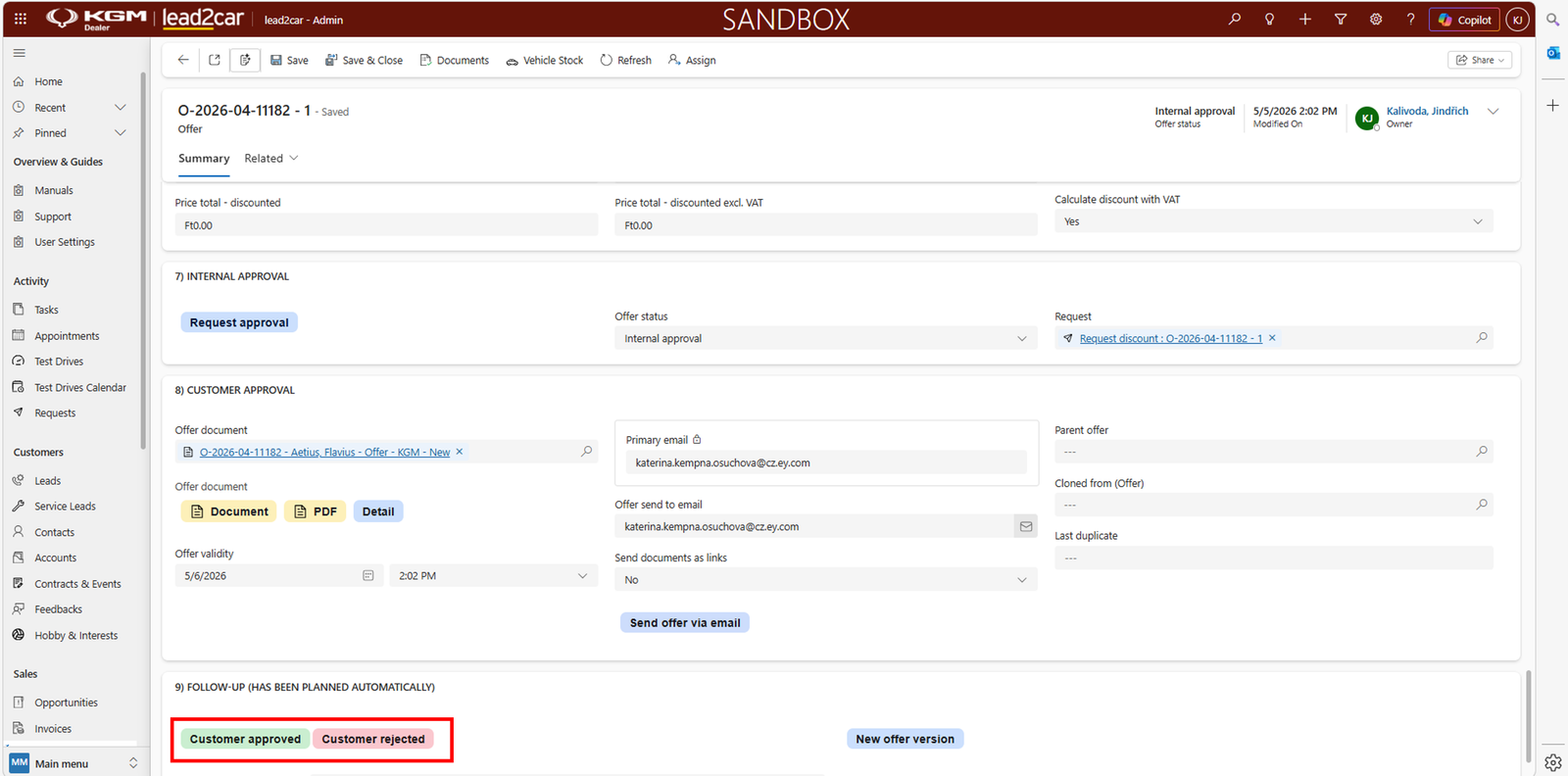
Customer decision
- Customer approved Next phase
- Customer rejected Back to Offer
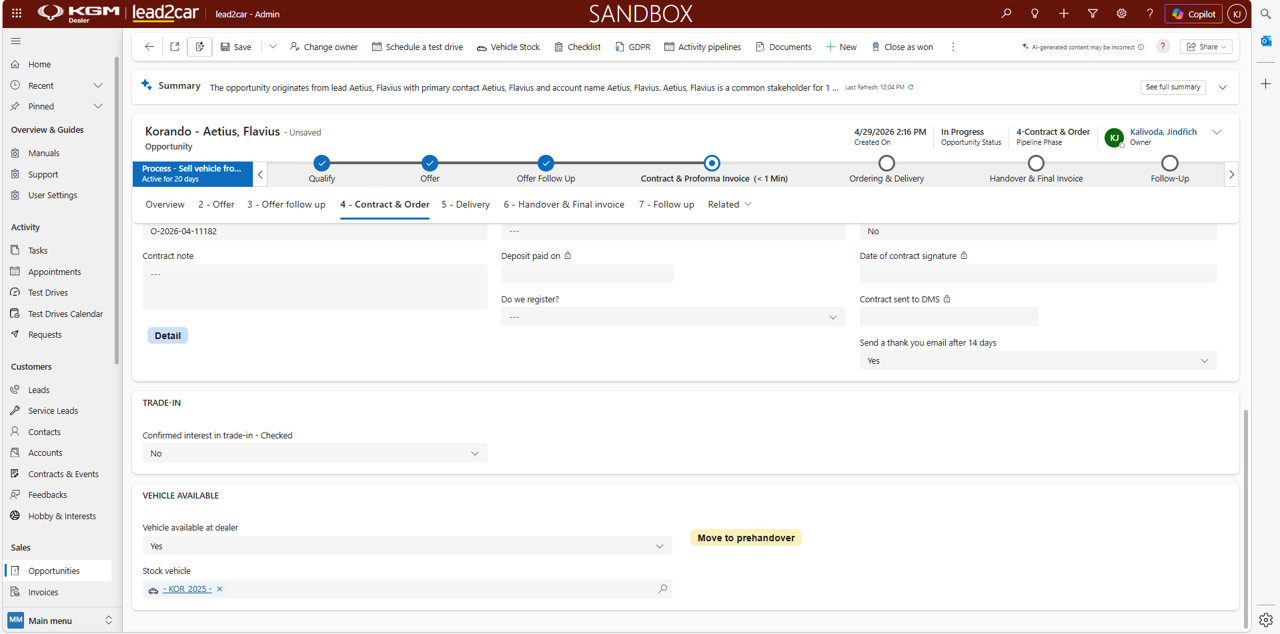
Contract & Order
After approval, create the vehicle order.
- Verify data
- Create order
- Wait for production
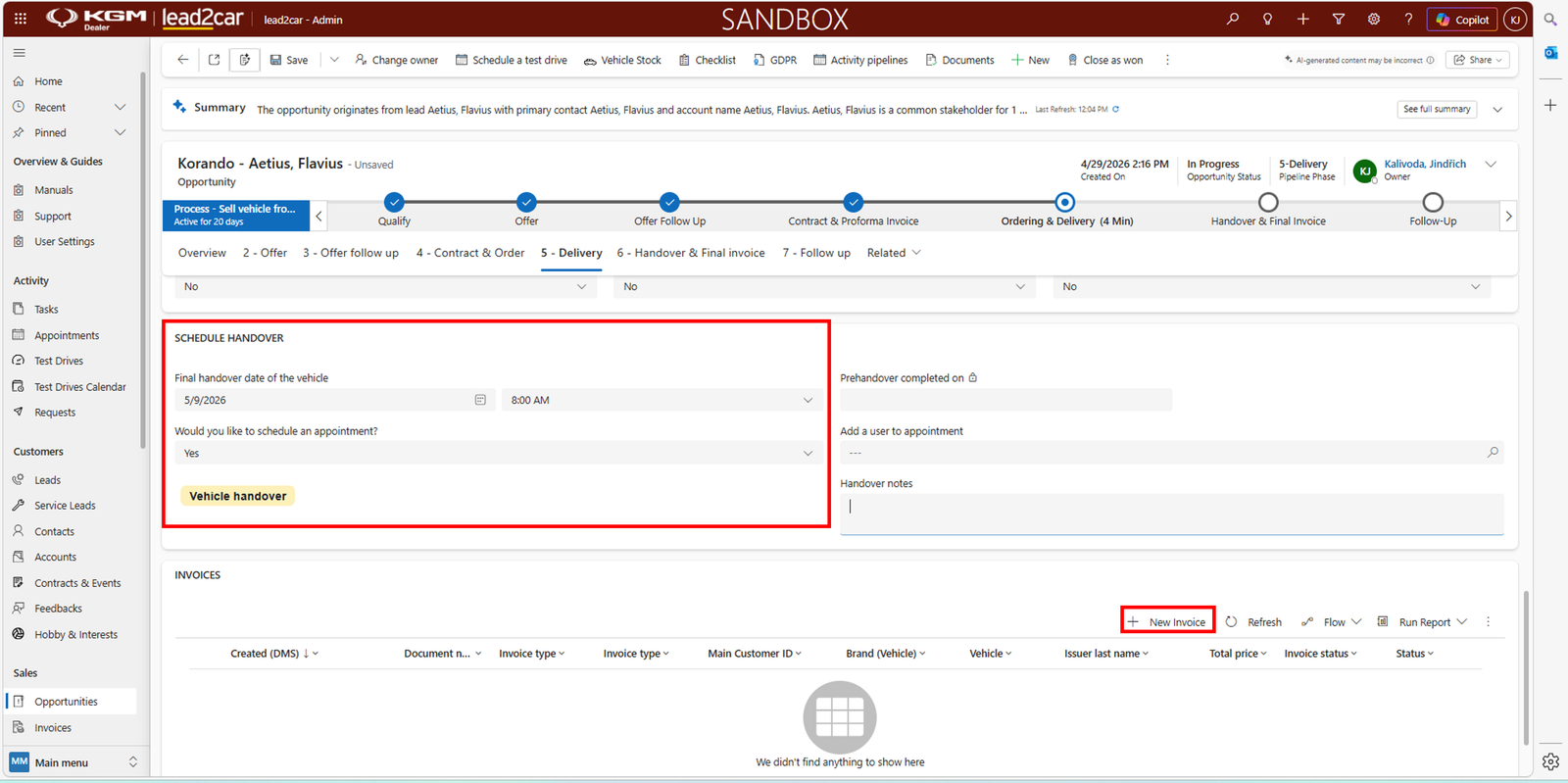
Delivery
Schedule the vehicle handover.
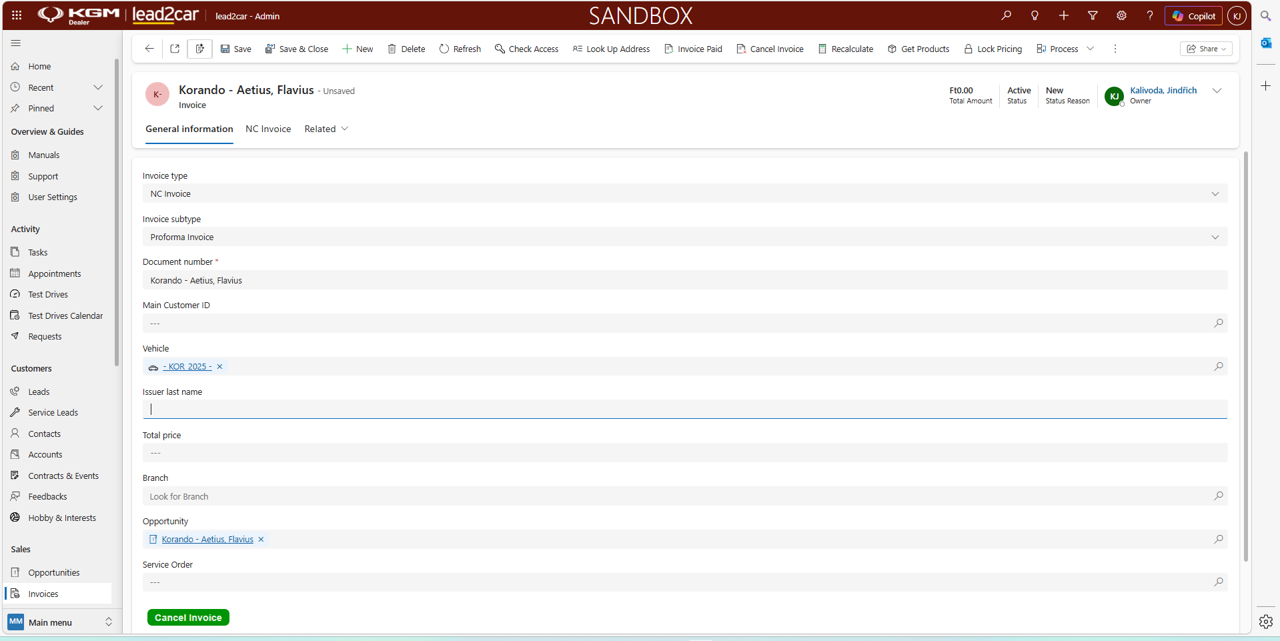
Invoices are received from DMS and displayed for reference.
Handover & Final invoice
Complete the handover process:
- Final inspection
- Handover keys
- Review checklist
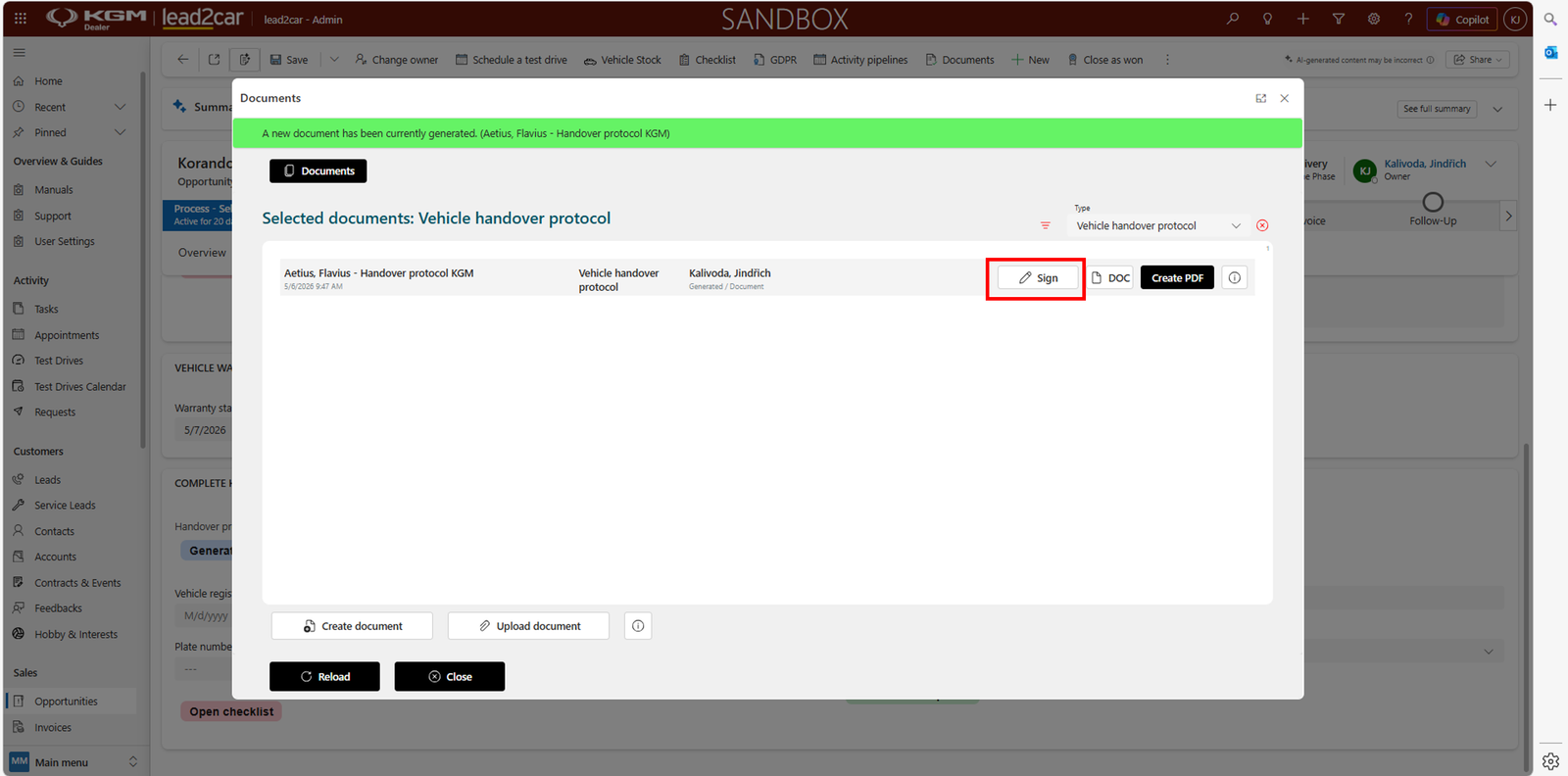
Generate handover and warranty documents.
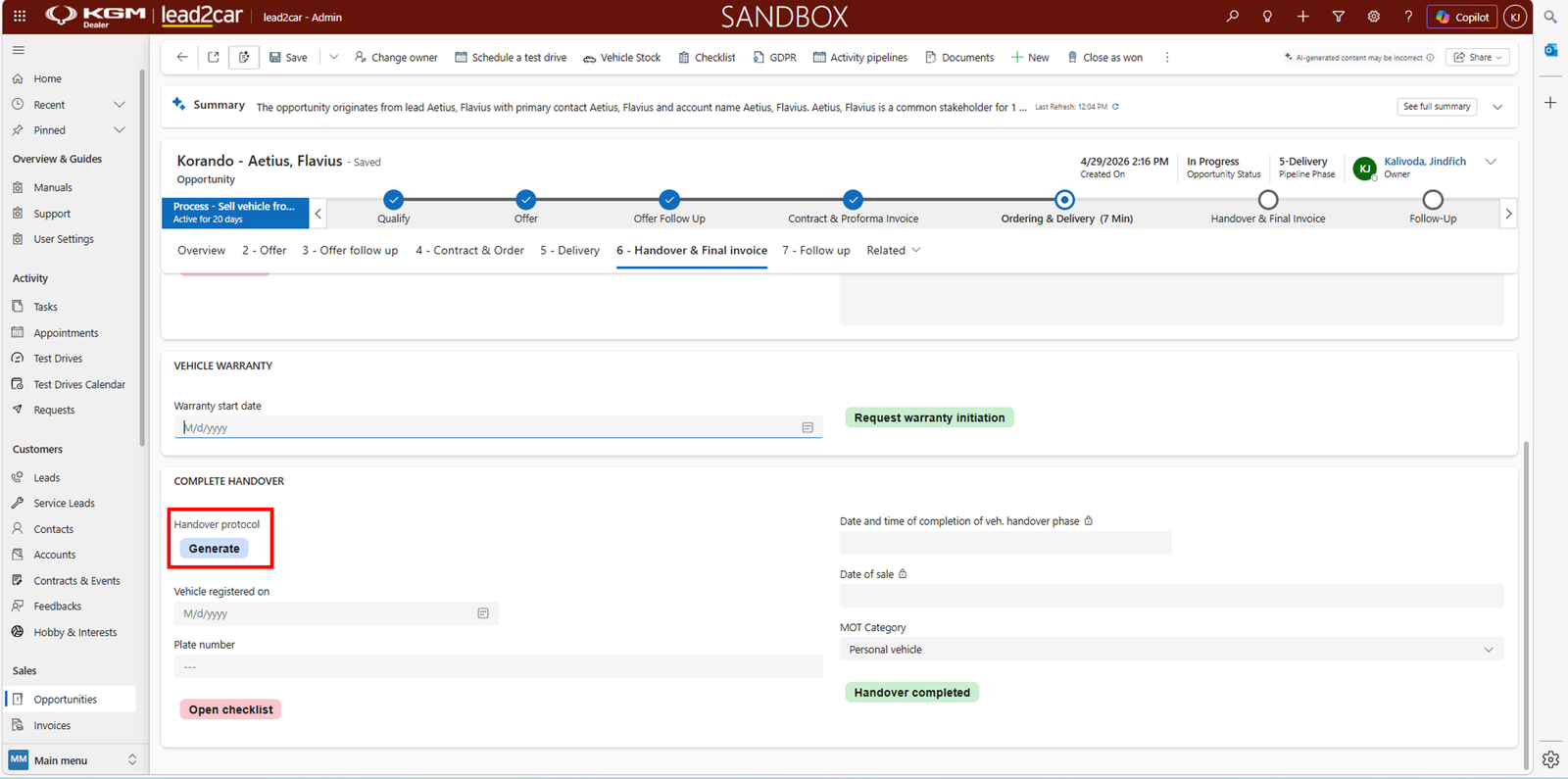
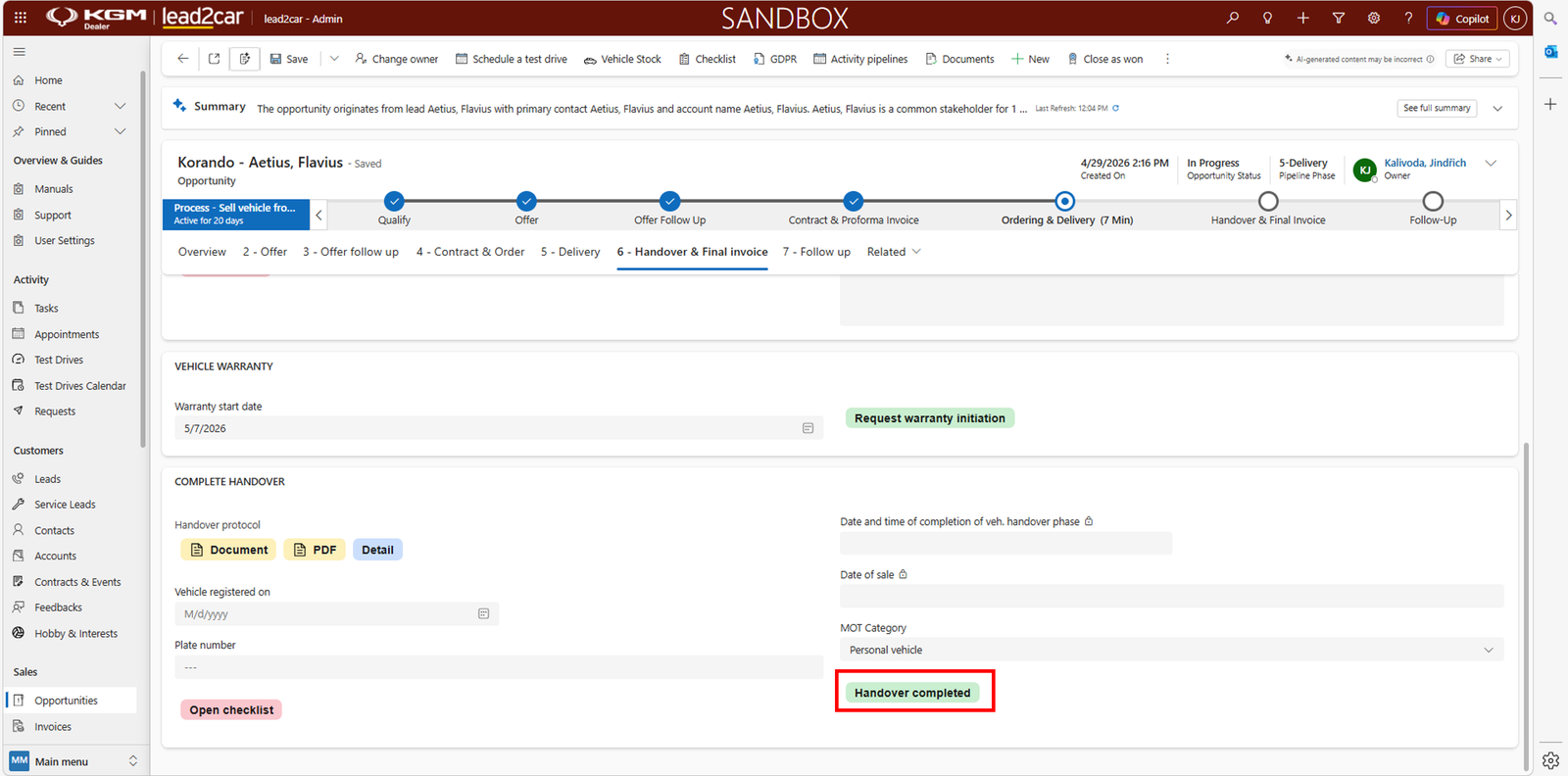
After completion, click Handover completed.
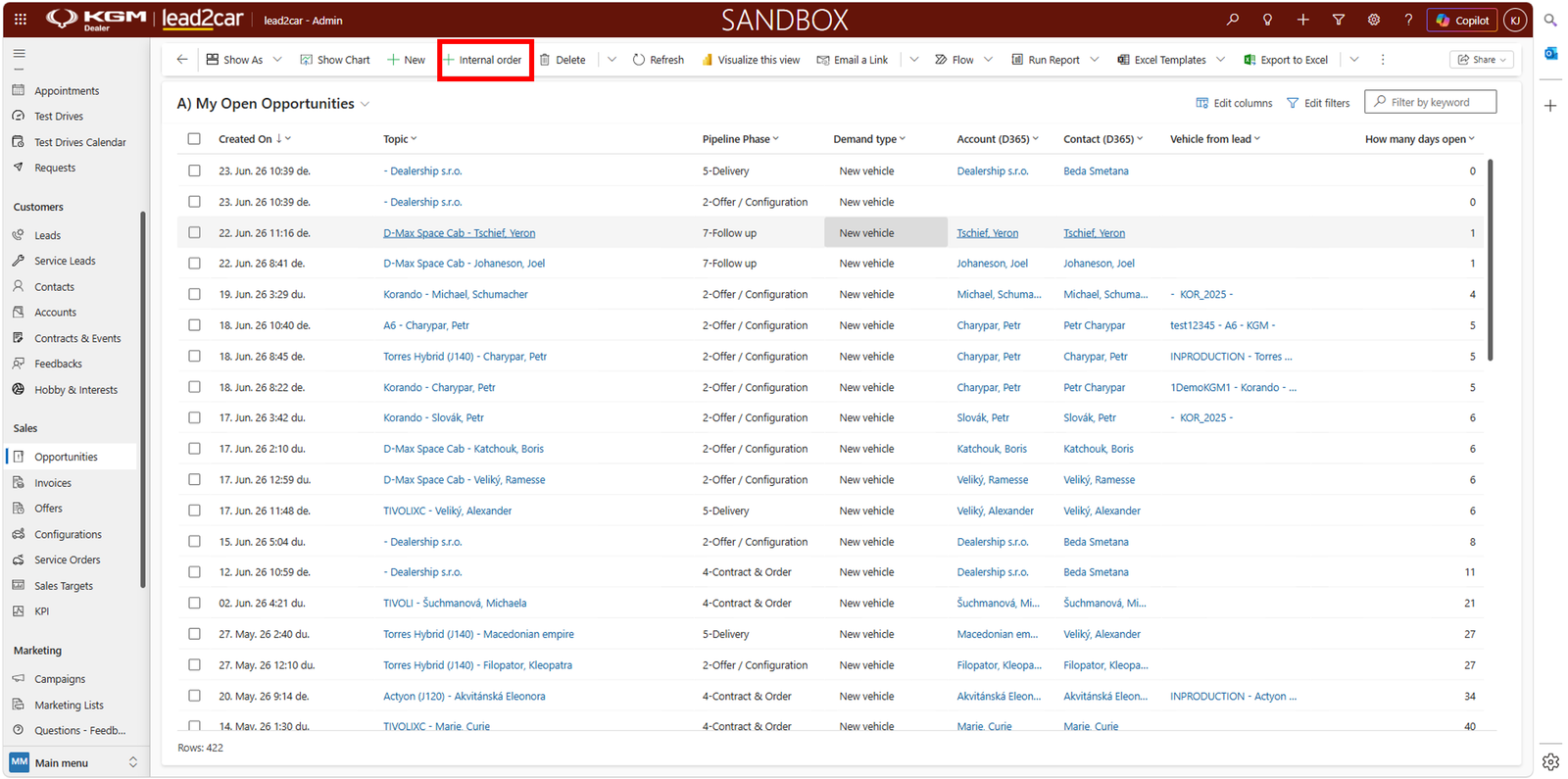
Internal order
Internal order is used for ordering vehicles for dealer stock without a specific customer.
Offer creation
The process of creating an offer and configuration is identical to the standard Opportunity flow.
- Create vehicle configuration (CPQ or manual)
- Create Offer
- Generate and review the Offer
Internal approval
For stock orders, approval from the Head of the Dealership (Sales Manager) is required before continuing.
- Click Internal Approval
- A request is automatically created
- The request is sent for approval
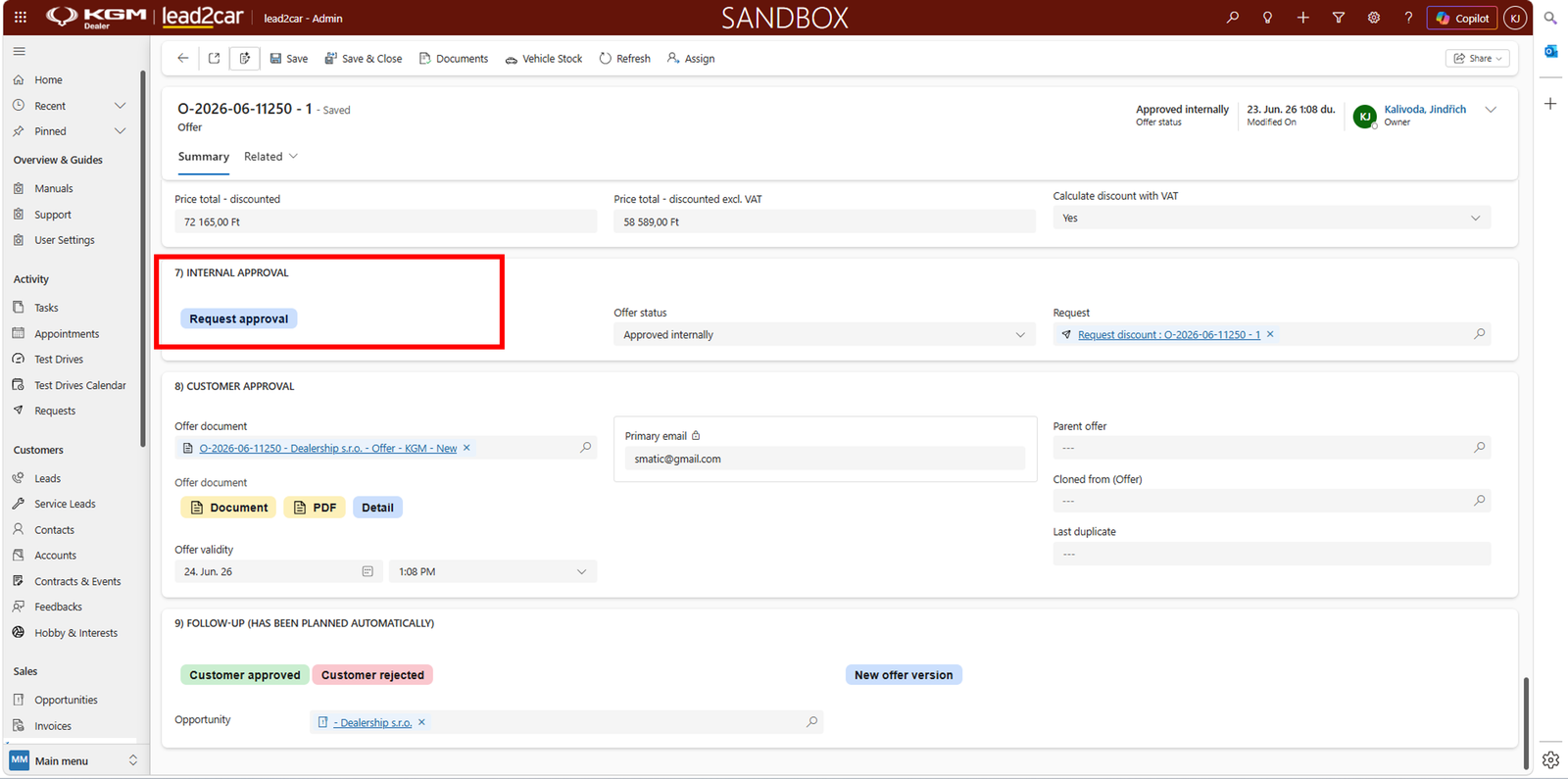
Only after approval can the order proceed further in the process. More information about approvals can be found in the Requests entity.
After approval
- The Opportunity moves to the Contract & Order phase
- The order can be created and processed further
Contract & Order
- Verify all required data
- Ensure contact details are complete
- Click Create Order
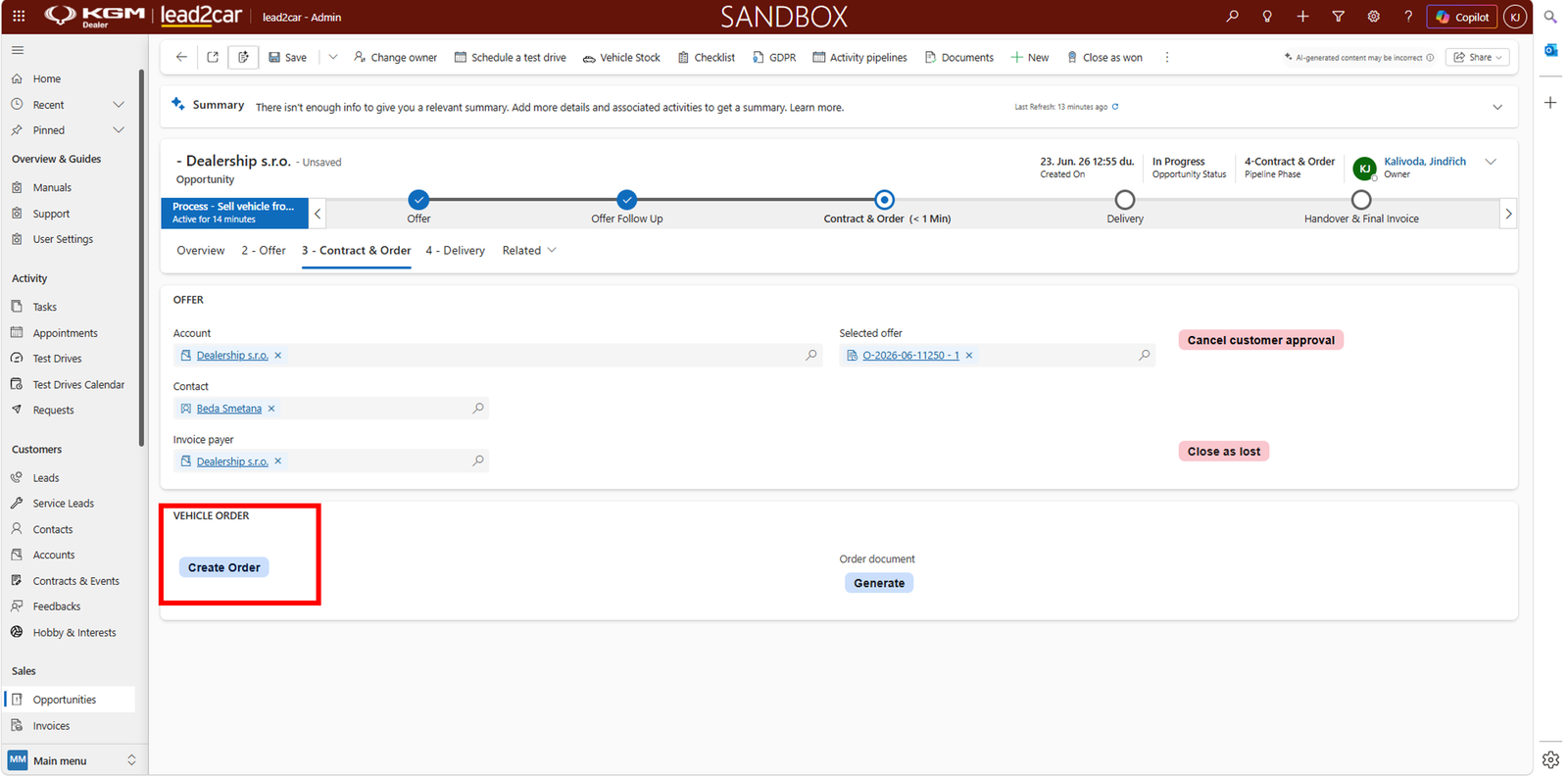
Vehicle arrival and activation
Once the vehicle is delivered to the dealer, it must be activated in the system.
- Wait for vehicle arrival (from DMS / production)
- Open the Opportunity or Order
- Activate the vehicle in the system
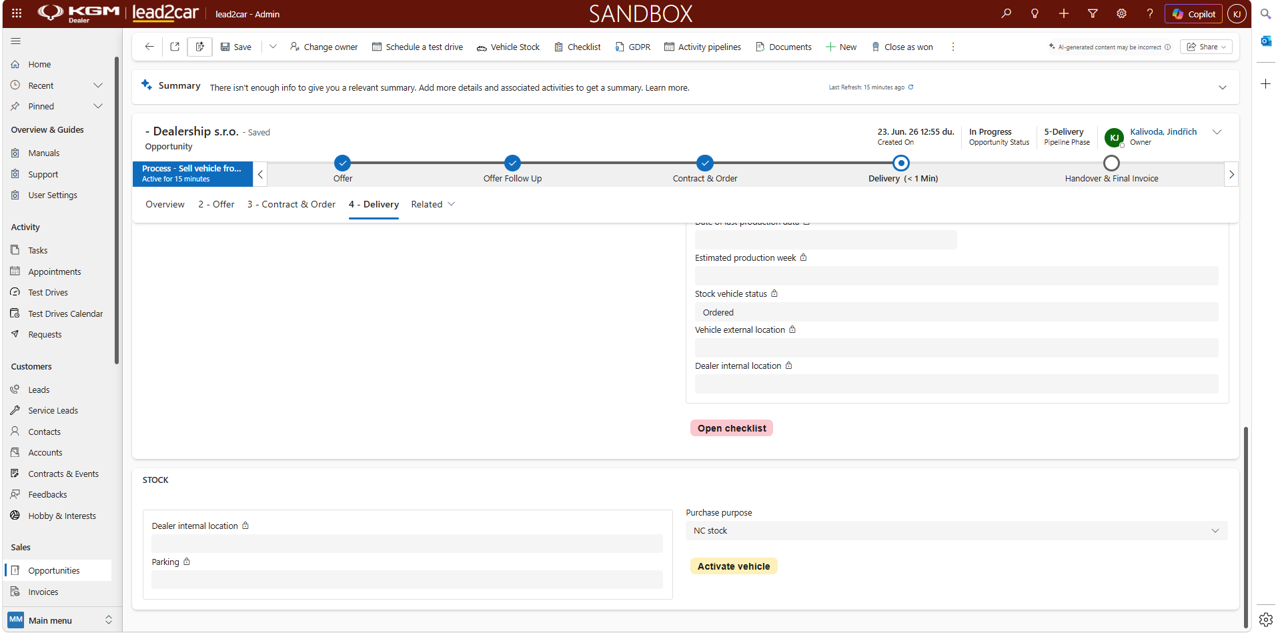
After activation, the opportunity will be closed.