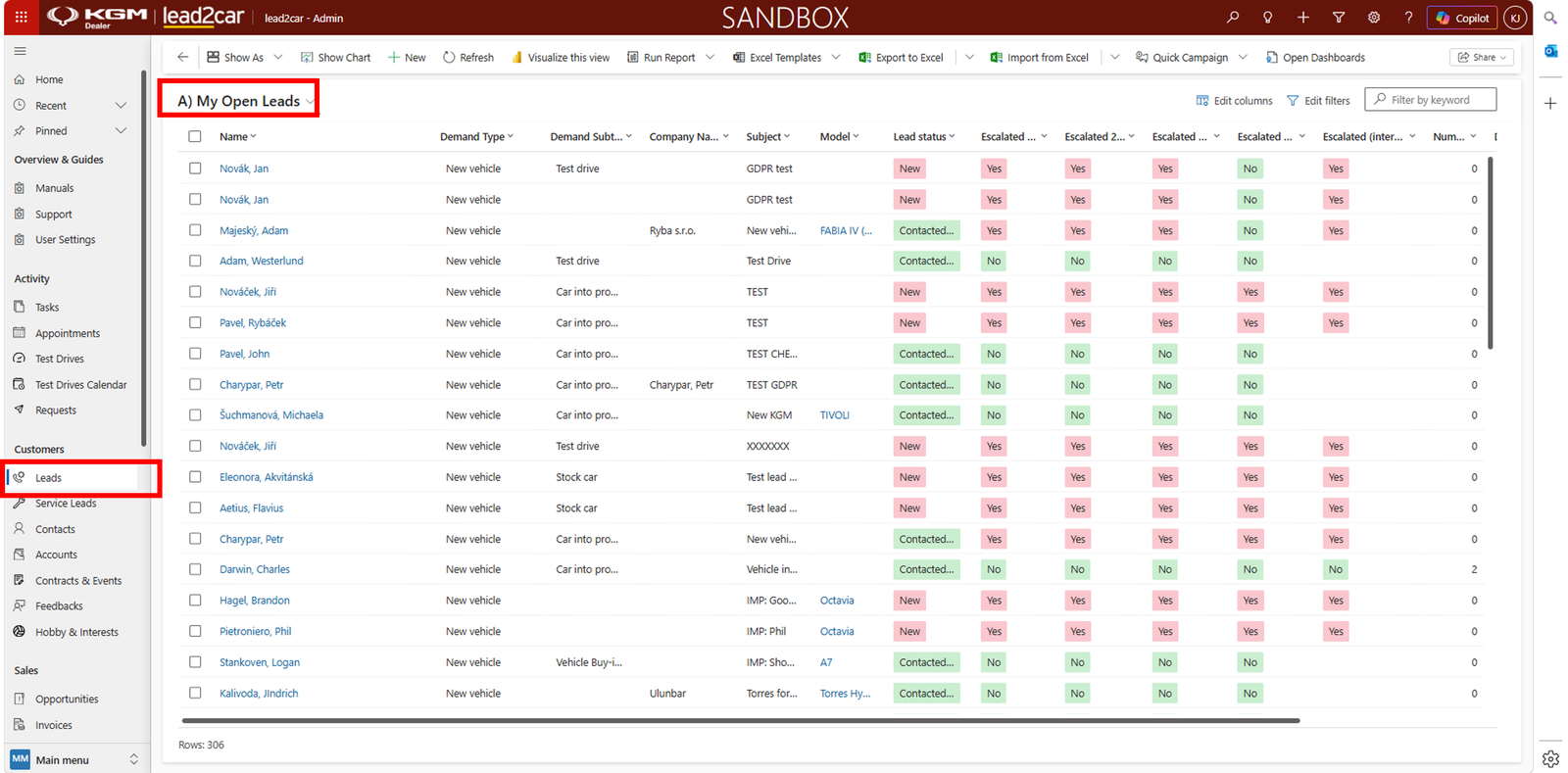
Choose a base view
A custom view can be created based on any existing view in lead2car. In this guide, the My Open Leads view is used as the base.
Add columns
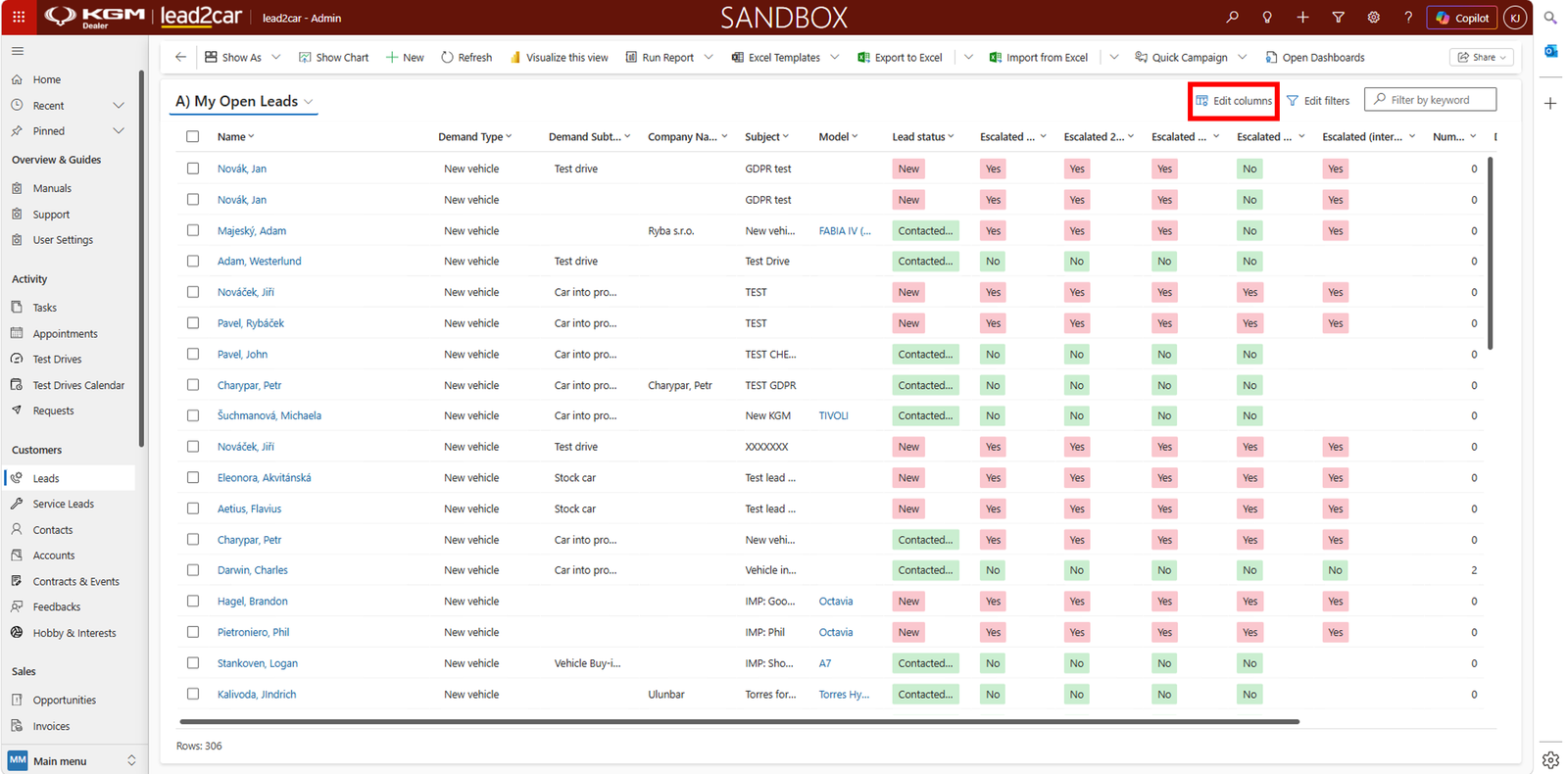
In the top right corner, click on Edit Columns.
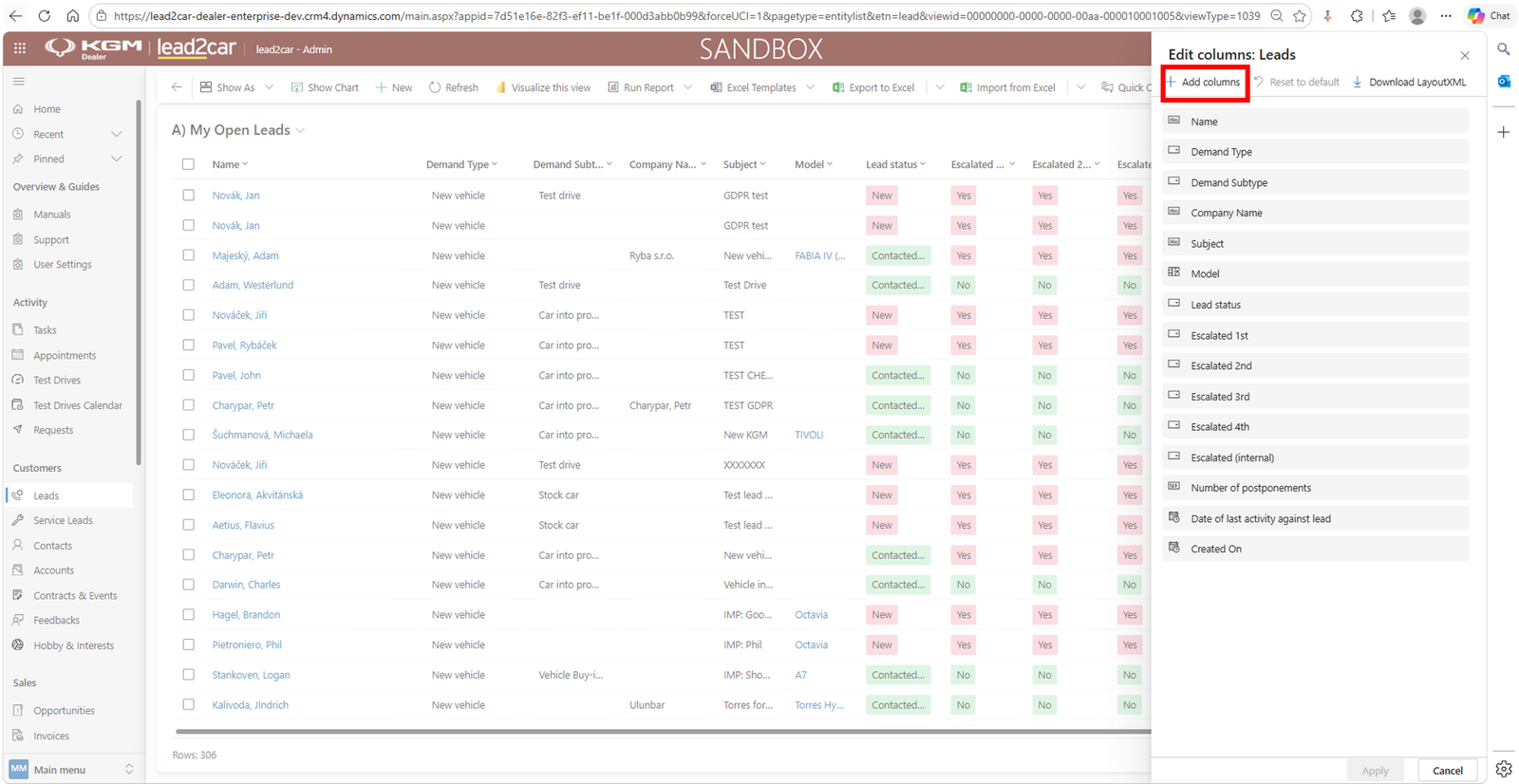
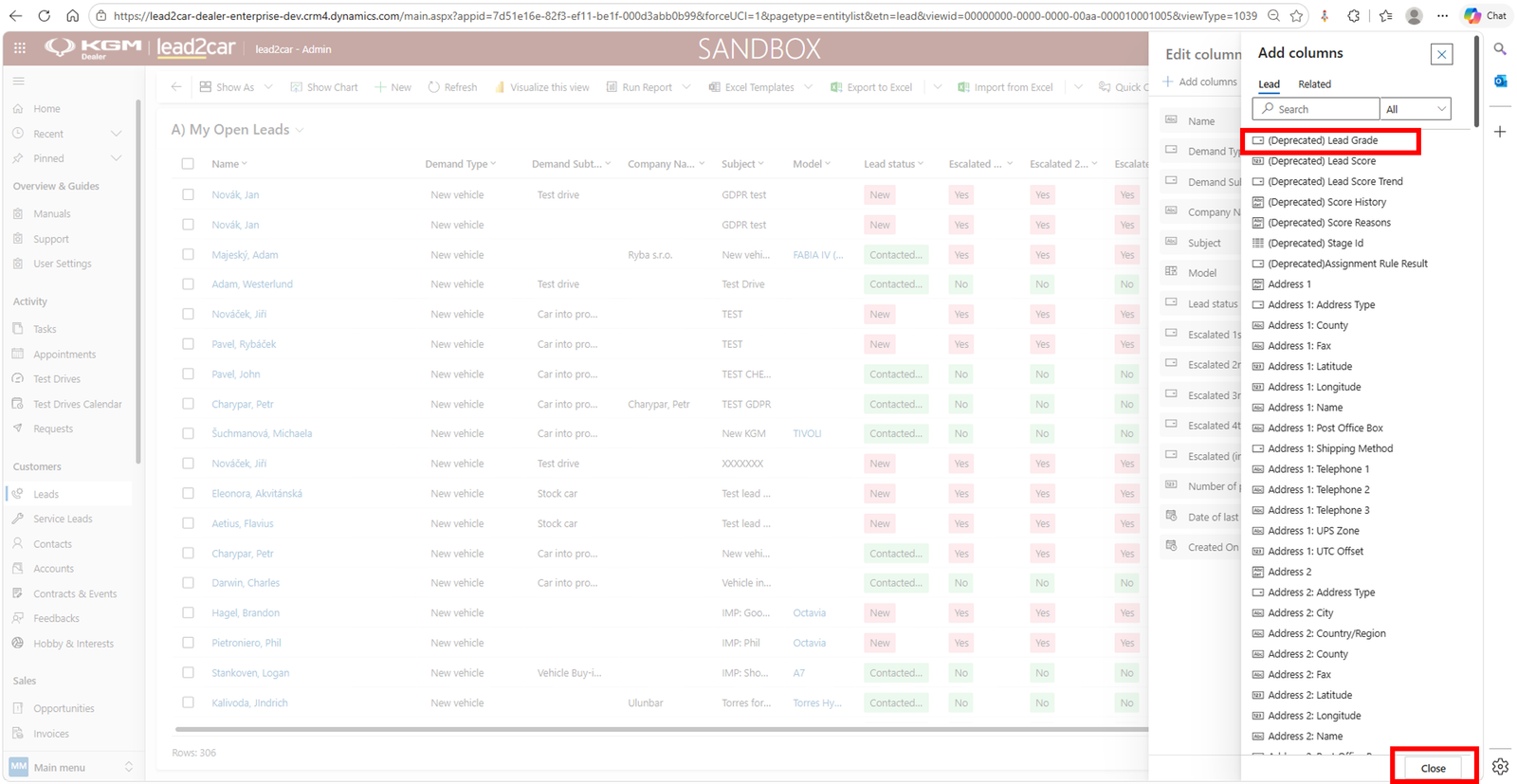
Then select + Add columns. You can choose any number of columns that will be displayed in your new custom view.
After clicking a column name, it will disappear from the available list. In this example, the column (Deprecated) Lead Grade was selected. After selecting the desired fields, click Close.
Arrange and apply
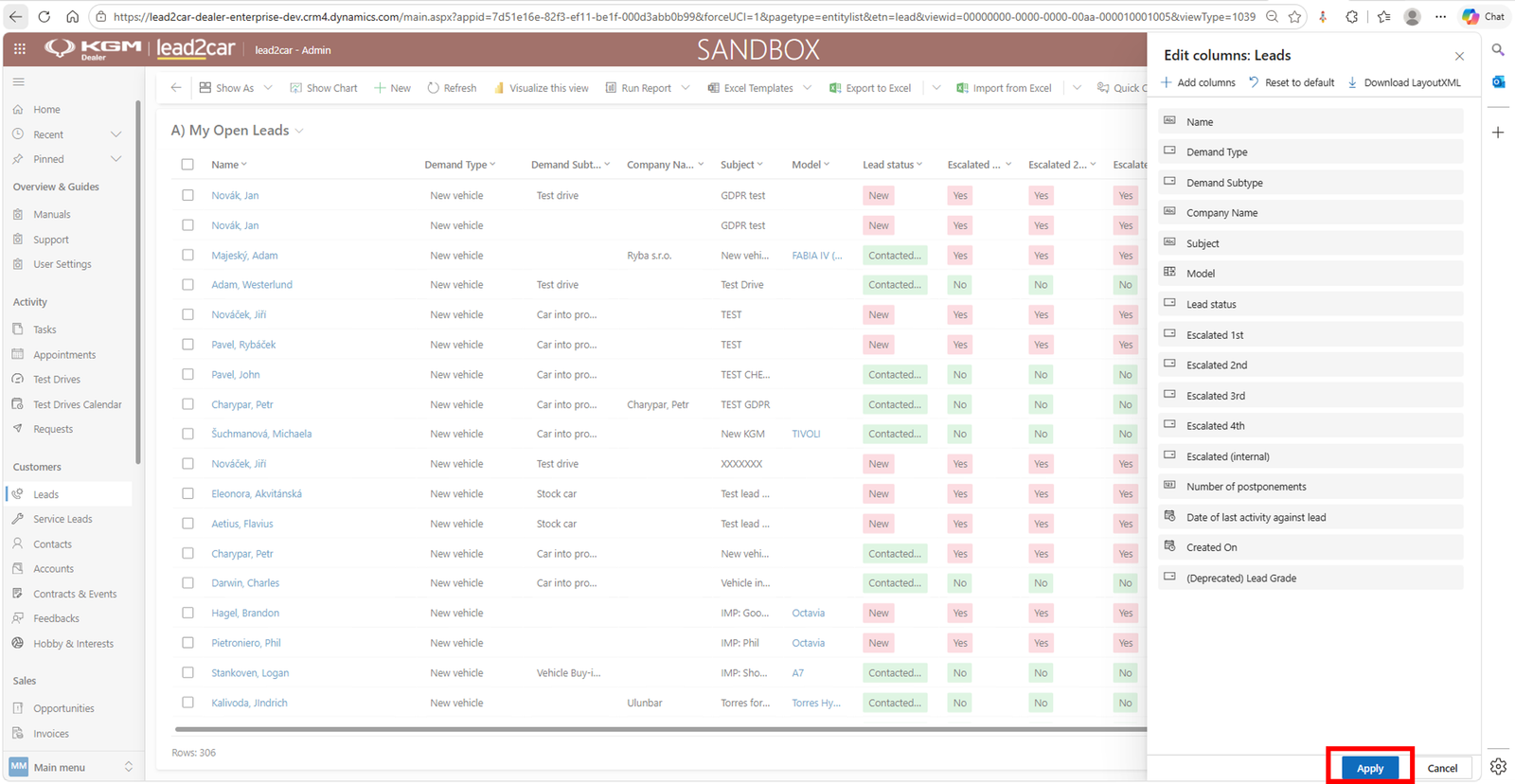
The selected column will appear among the existing columns. You can reorder or remove columns. In this case, it remains at the end. After final adjustments, click Apply.
Save as new view
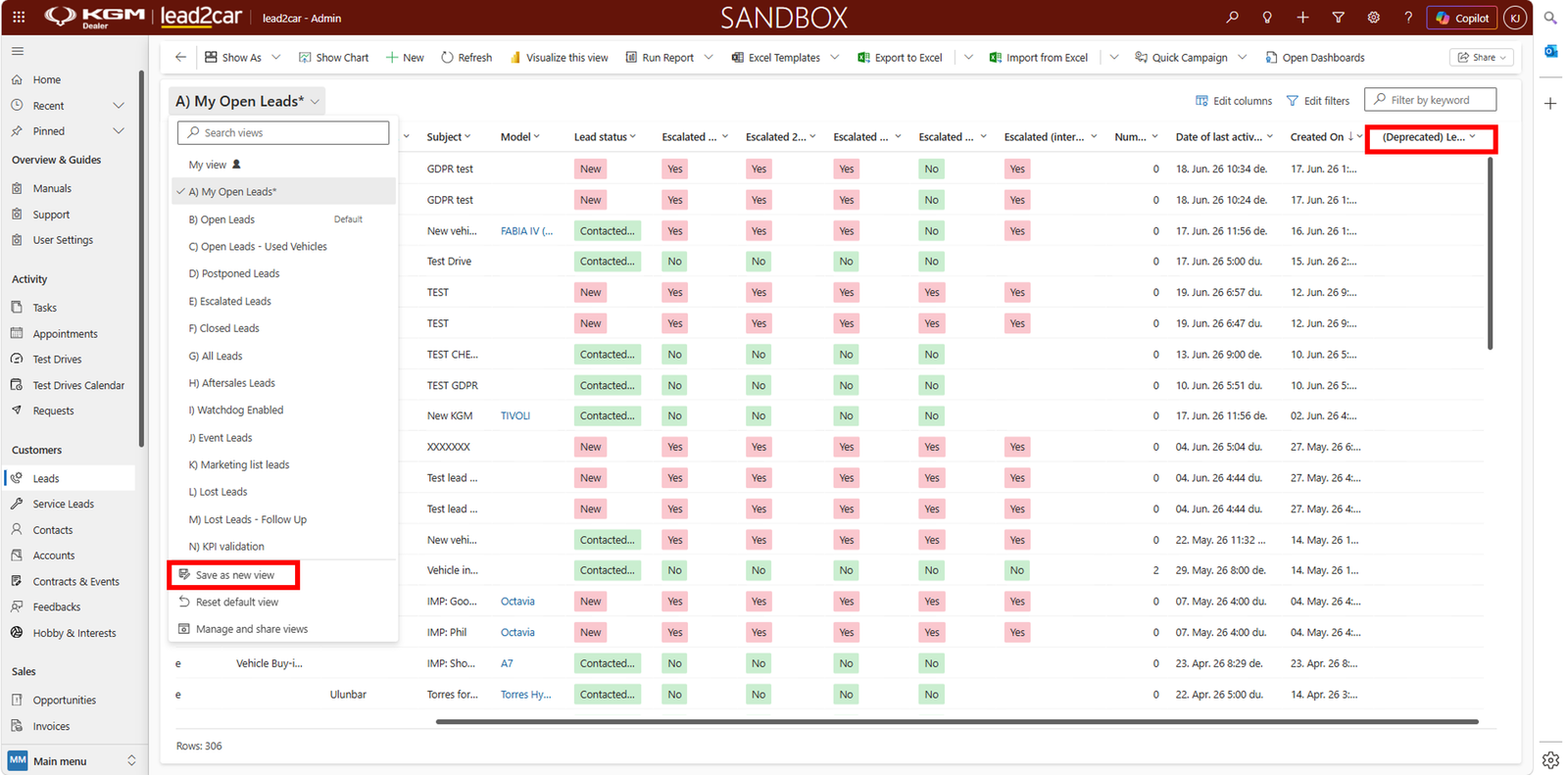
The column is now visible in the view. To save the updated view, click the arrow next to the view name and select Save as new view.
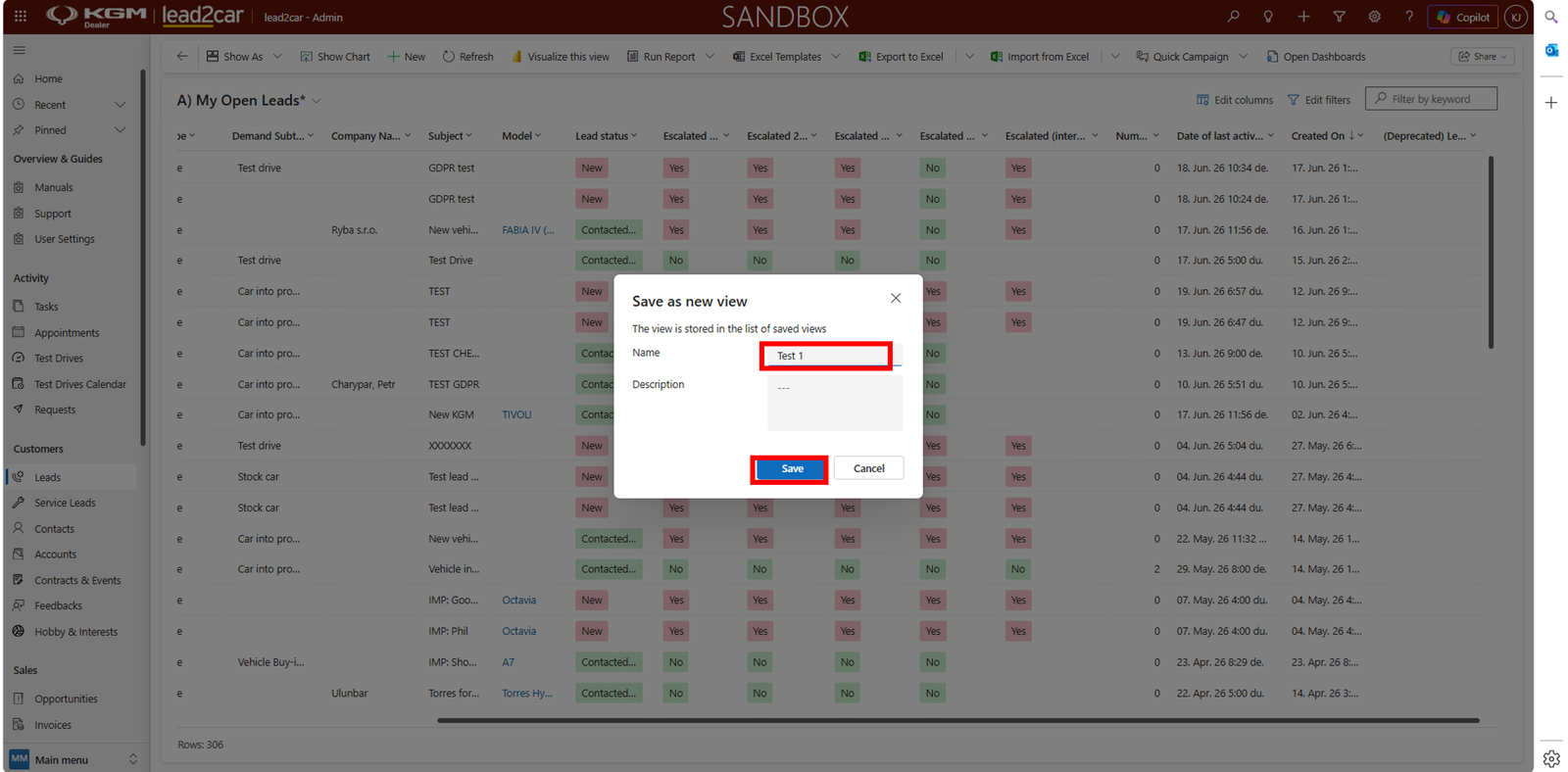
Name the new view and click Save. In this guide, the name Test1 was used.
Set as default view
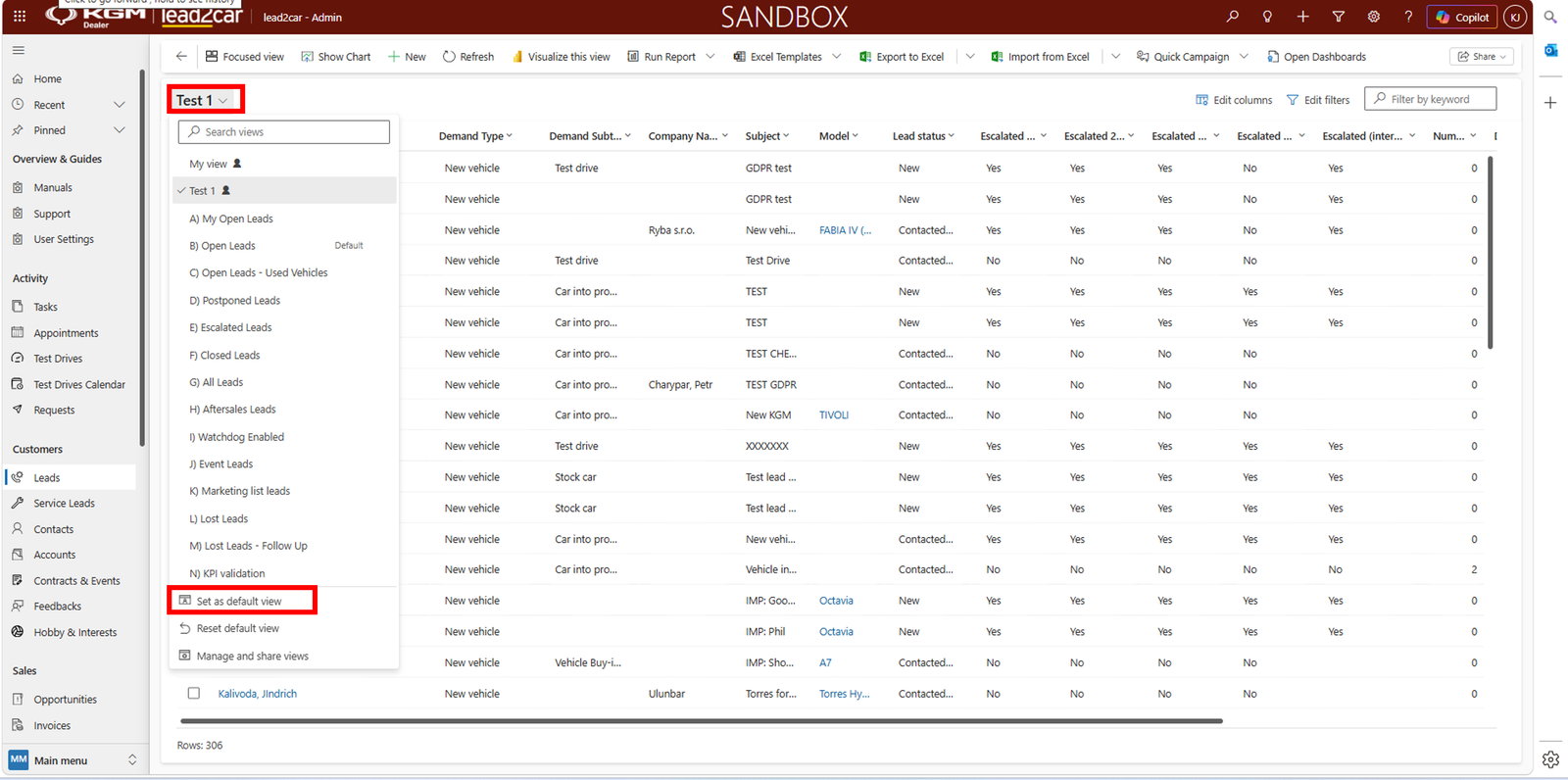
Finally, click the arrow again and select Set as default view.