Overview
Test drives in lead2car can be managed in two ways:
- Test Drives Calendar – visual overview and quick booking
- Test Drives entity – detailed records of past and future drives
This guide explains how to work with the calendar and how to create and manage test drive records.
Test drives calendar
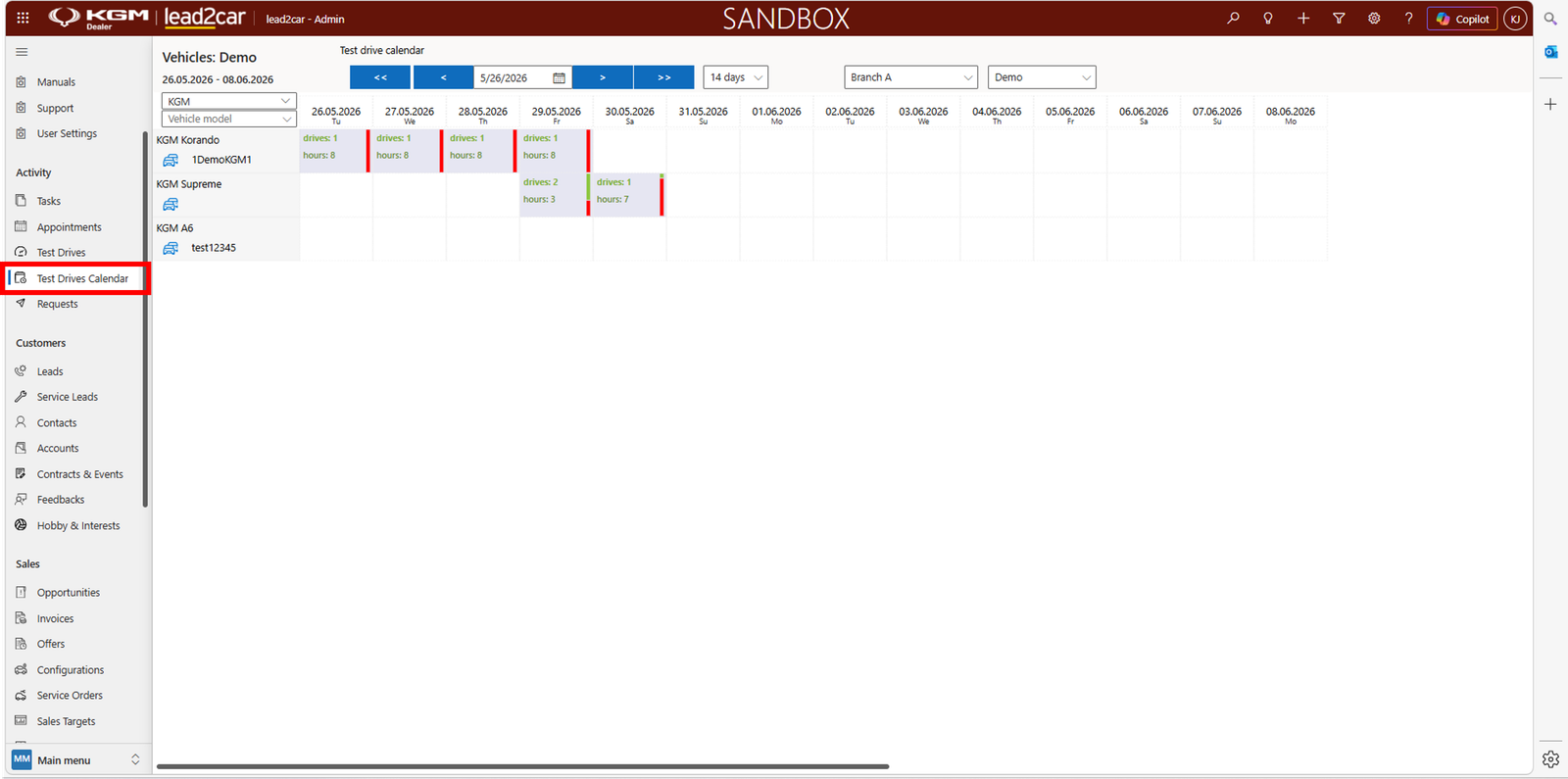
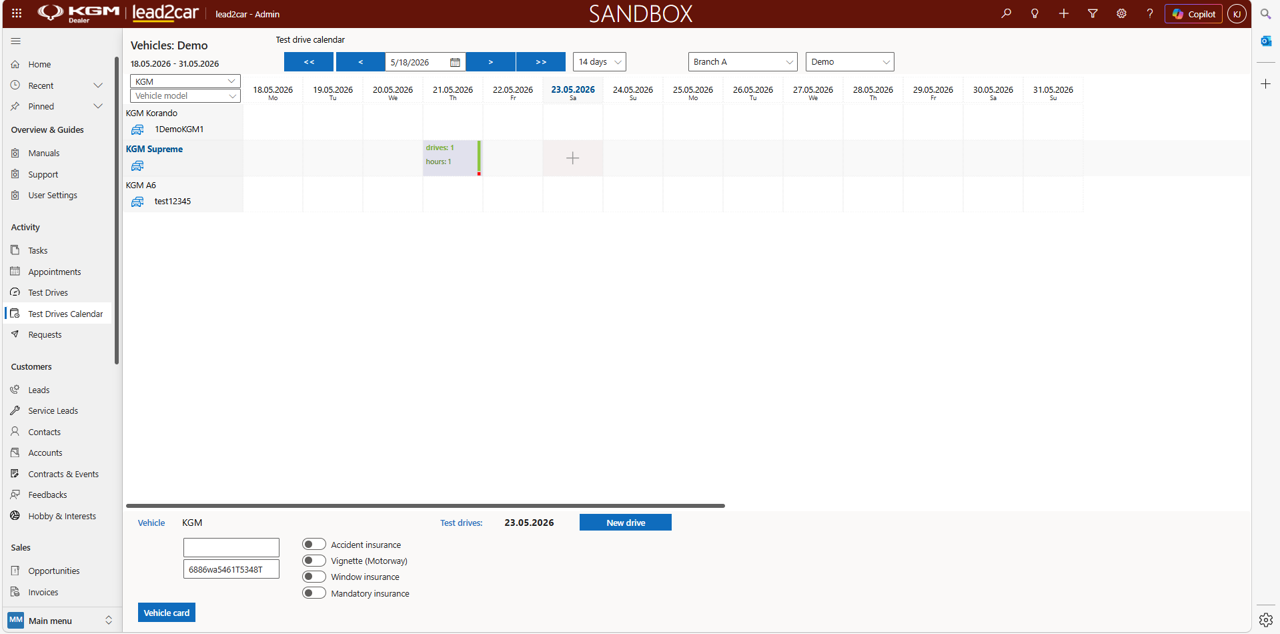
The Test Drives Calendar is available in the left menu under Test Drives Calendar. It provides an overview of test drives across the dealership.
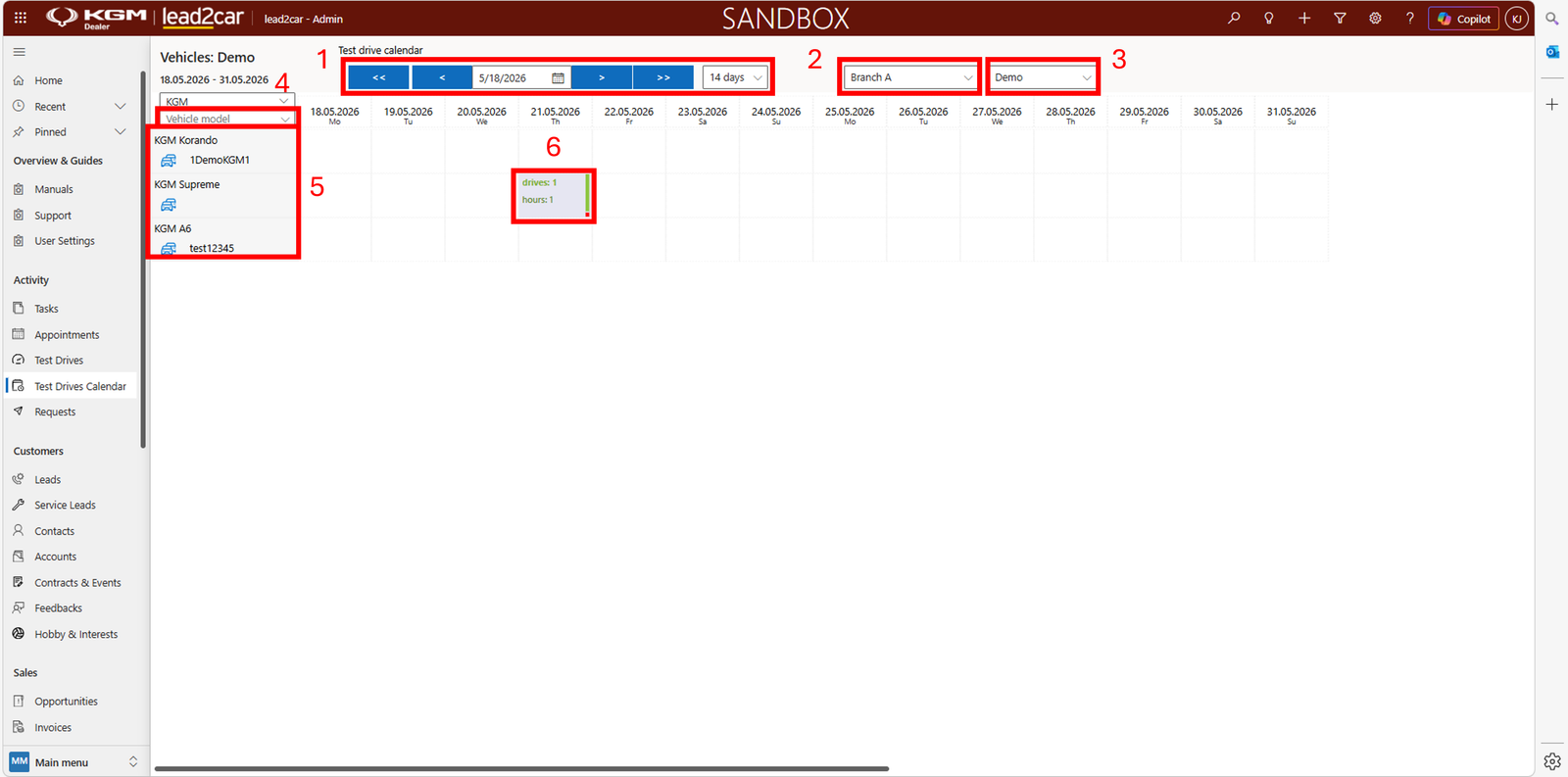
Main sections
- Date selection
- Vehicle filter by branch
- Vehicle category filter (demo vehicles, PV & SV vehicles, replacement cars)
- Model filter
- List of available vehicles including license plates
- Overview of planned drives and reservations
Vehicle details
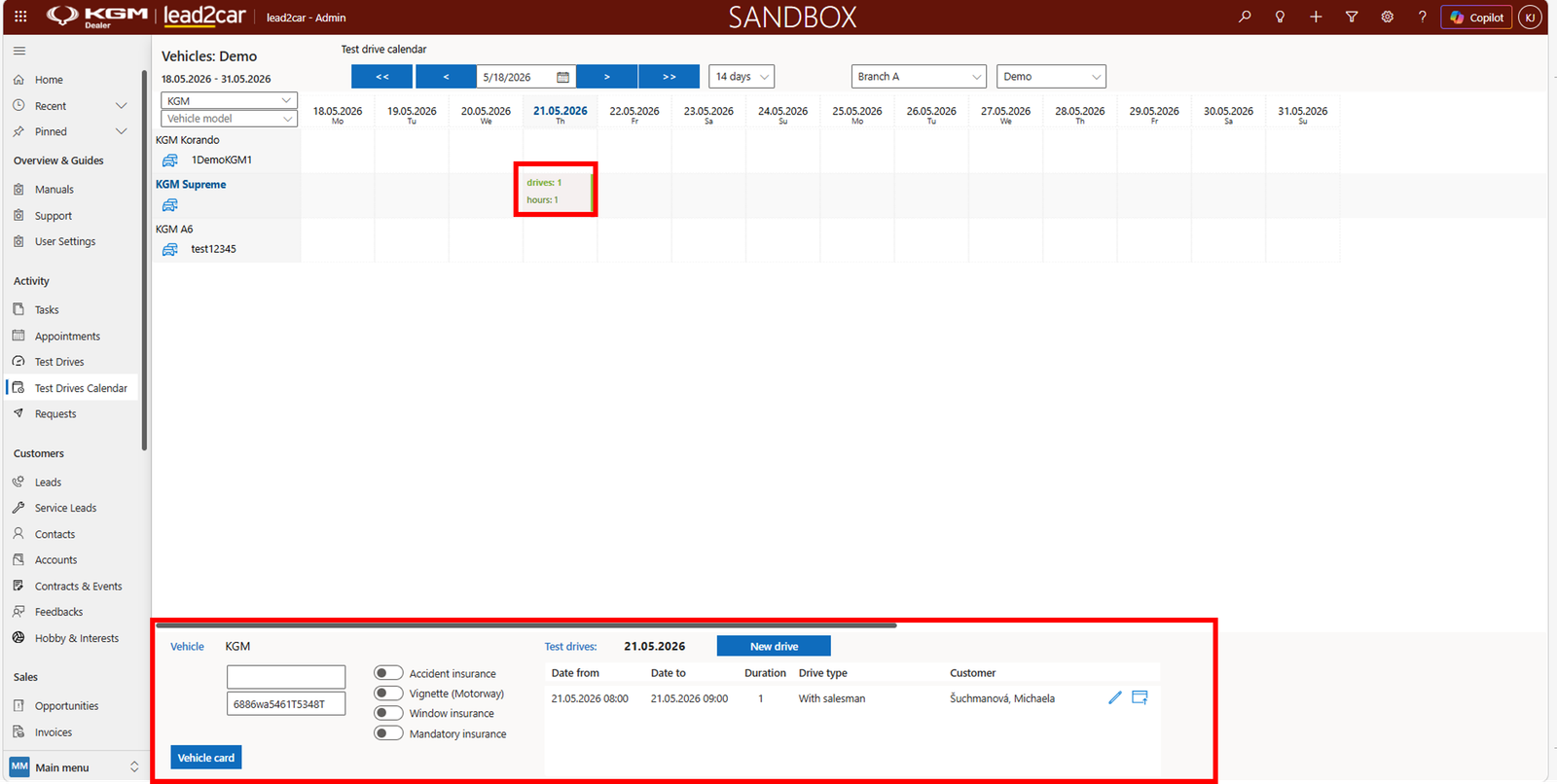
Clicking any calendar cell displays detailed vehicle information:
- VIN
- Insurance status
- Road vignette
- Window insurance
Use the Vehicle card button for more details. If the vehicle is already reserved, you will see the reservation time and customer name.
Creating a reservation
To create a new test drive, click a date in the calendar or click Create new drive.
Fill in the form:
- Date and time – from / to
- Customer – select customer, company or lead
- Test drive type – with salesperson, short-term, long-term
- Responsible salesperson – verify the assigned user
- Confirmation – optionally send a confirmation to the customer
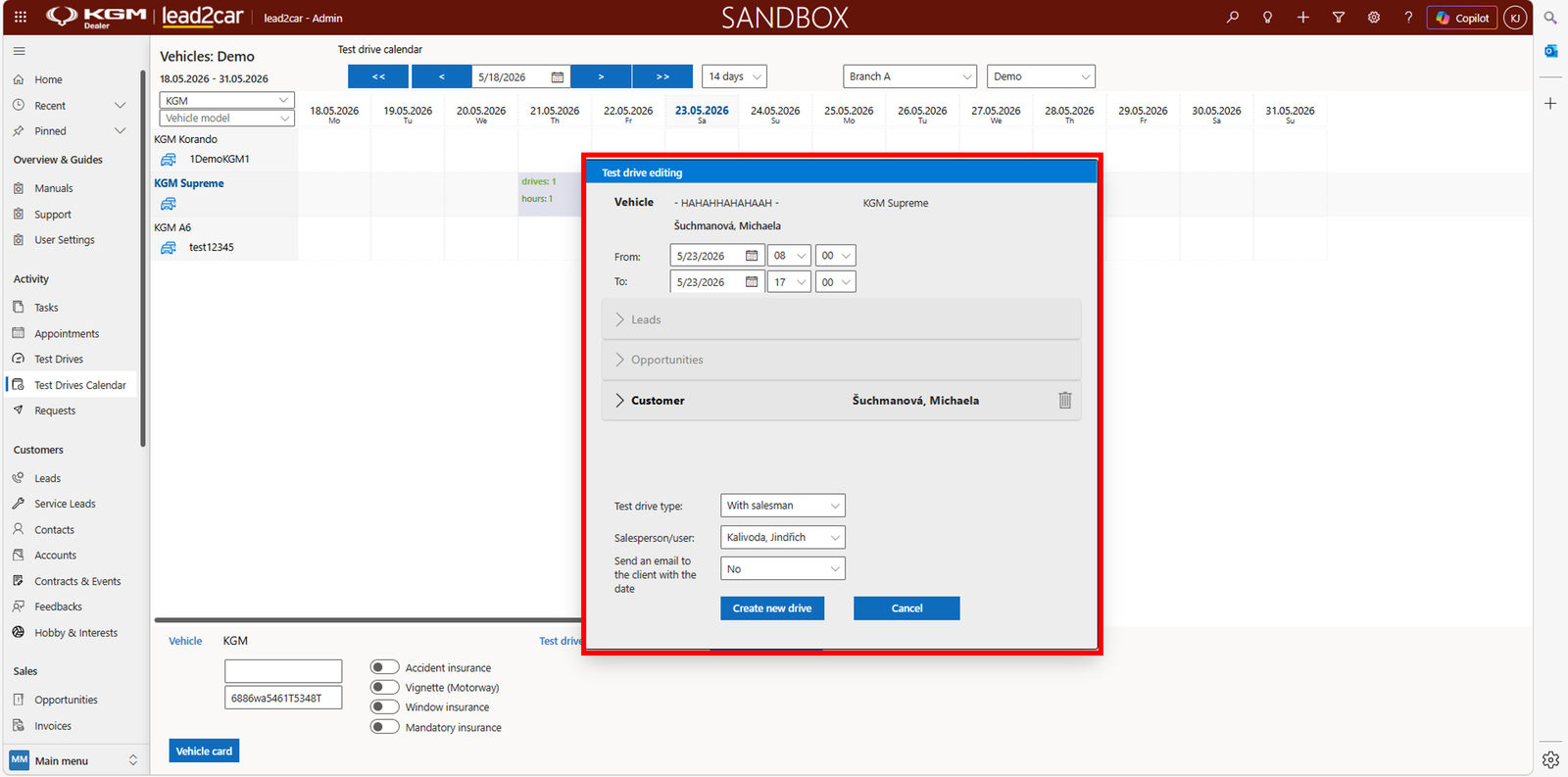
Confirm by clicking Create new drive.
Test drive records
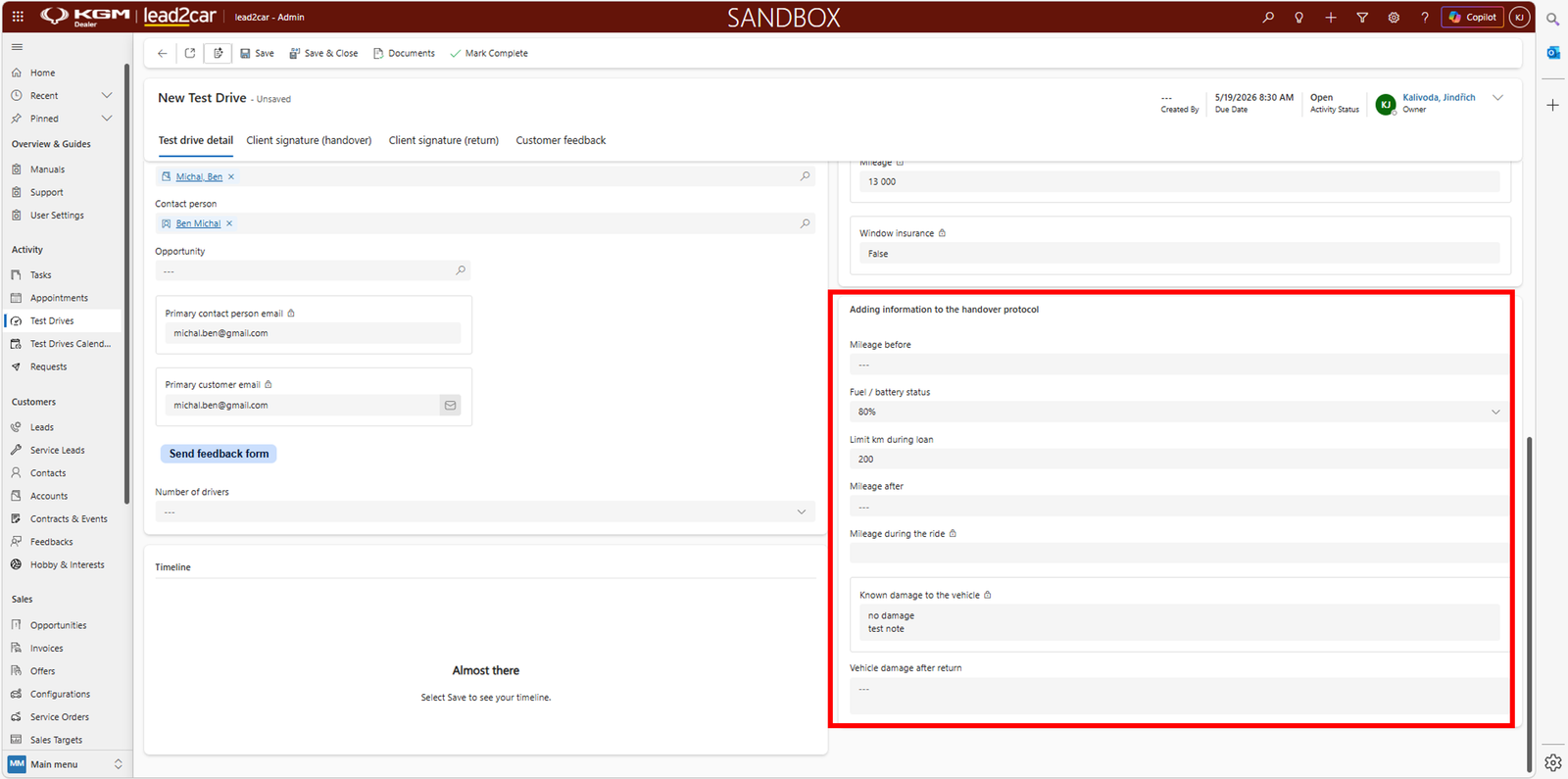
The Test Drives entity allows you to track both past and future test drives, including schedule dates, vehicle condition and customer assignment.
Steps
- Create test drive
- Select customer
- Select company
- Select test vehicle
- Save record
Customer selection
Choose whether the customer exists in the database or is a lead.
Vehicle selection
Select a vehicle and verify:
- Mileage
- Date of last update
- Fuel level
- Mileage limit
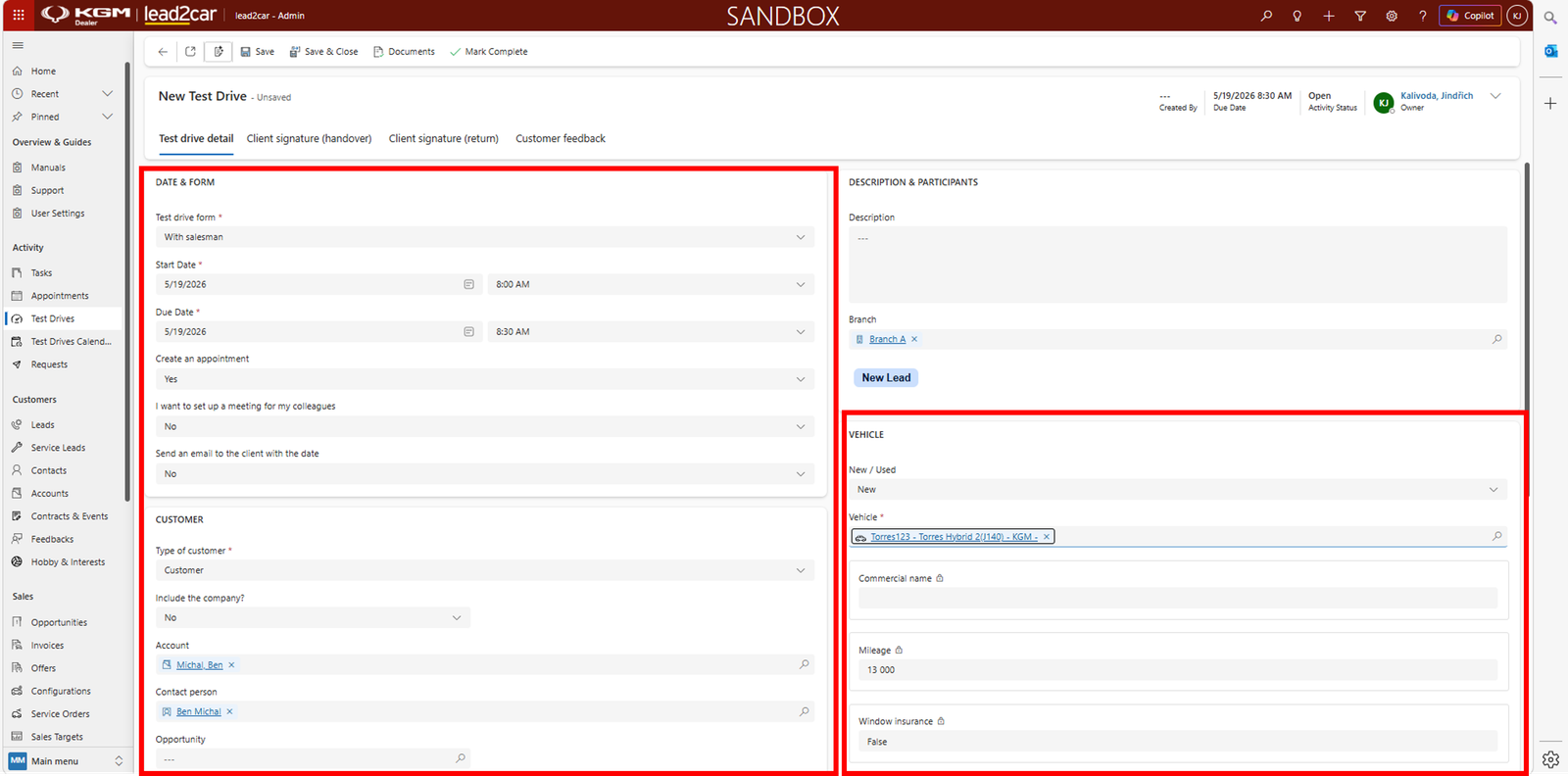
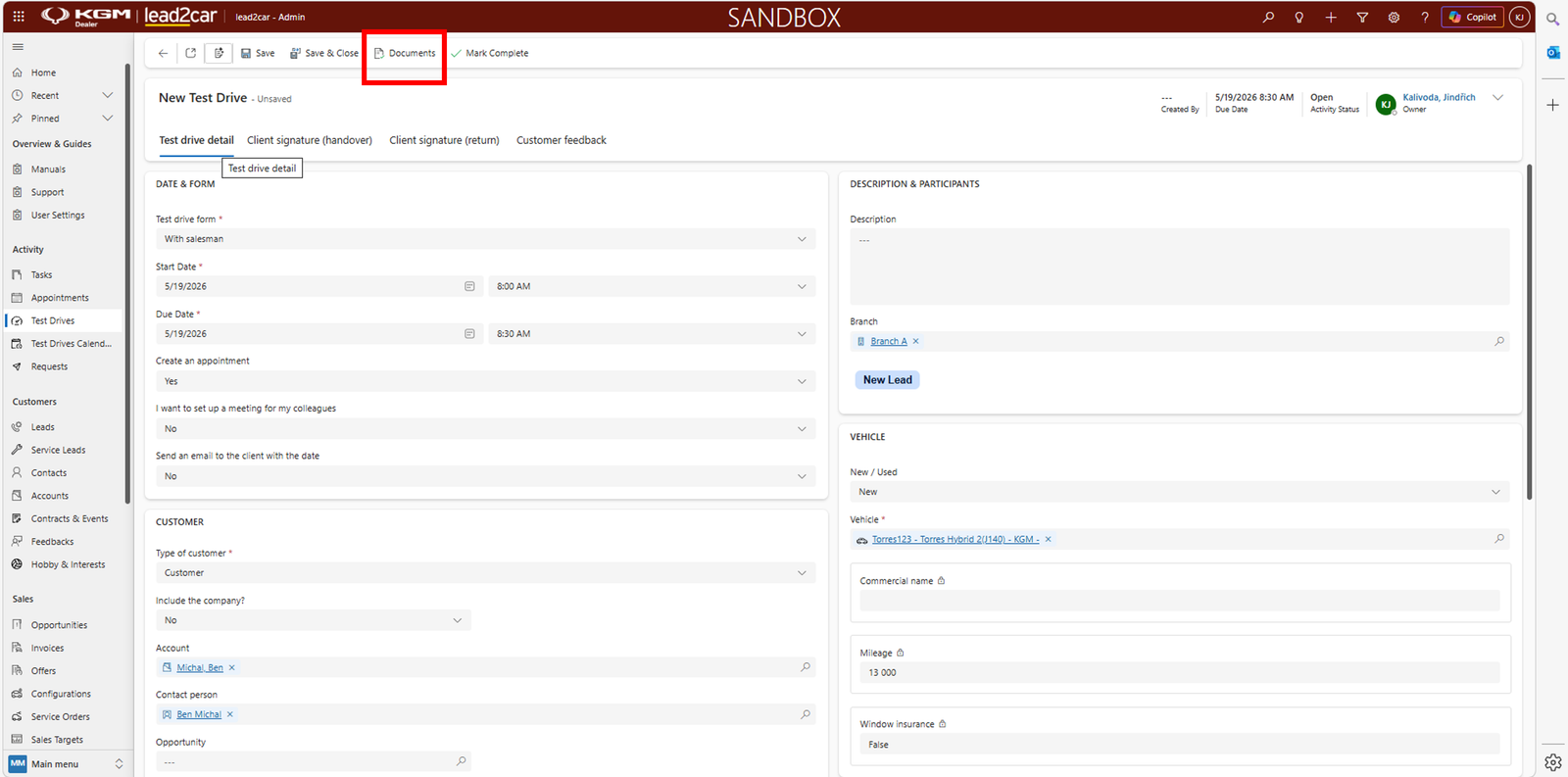
If everything is correct, click Save. You can also generate a handover protocol document (Word template).
After the test drive
Viewing test drives
Use filters to search records:
- Date and time
- Vehicle
- Customer
- New / used vehicle
Recording results
- Enter End mileage
- The system calculates the distance driven
- Record any damage
Completing the test drive
Click Mark as completed to close the record. After completing the test drive, you can generate a return protocol document for the vehicle.